Composition.
Every layout is built from the same few elements, arranged on a real grid around one clear hero. Choose your format, choose your grid, and experiment before you open Figma.
The layout studio
Pick a format and a grid, then move the elements around. Everything snaps to columns and rows, exactly as it will in Figma. When the layout works, copy the grid values into your Figma frame’s layout grid.
1 · Format
2 · Grid
3 · Grid settings
Figma layout grid
Download the grid
A transparent overlay at full size, exactly as shown. Place it on top of your frame in Figma or Canva, lock it, and arrange your design on it.
4 · Layout
5 · Mode
6 · Elements
Drag to move, drag the corner to resize: everything snaps to the grid. Click the headline to edit it.
Five grids
Most TFI work uses the column grid. Reach for the others when the content asks for it.
Column
Our default. Columns, margins and gutters; you align every element to a column edge.
Feed posts, slides, web.
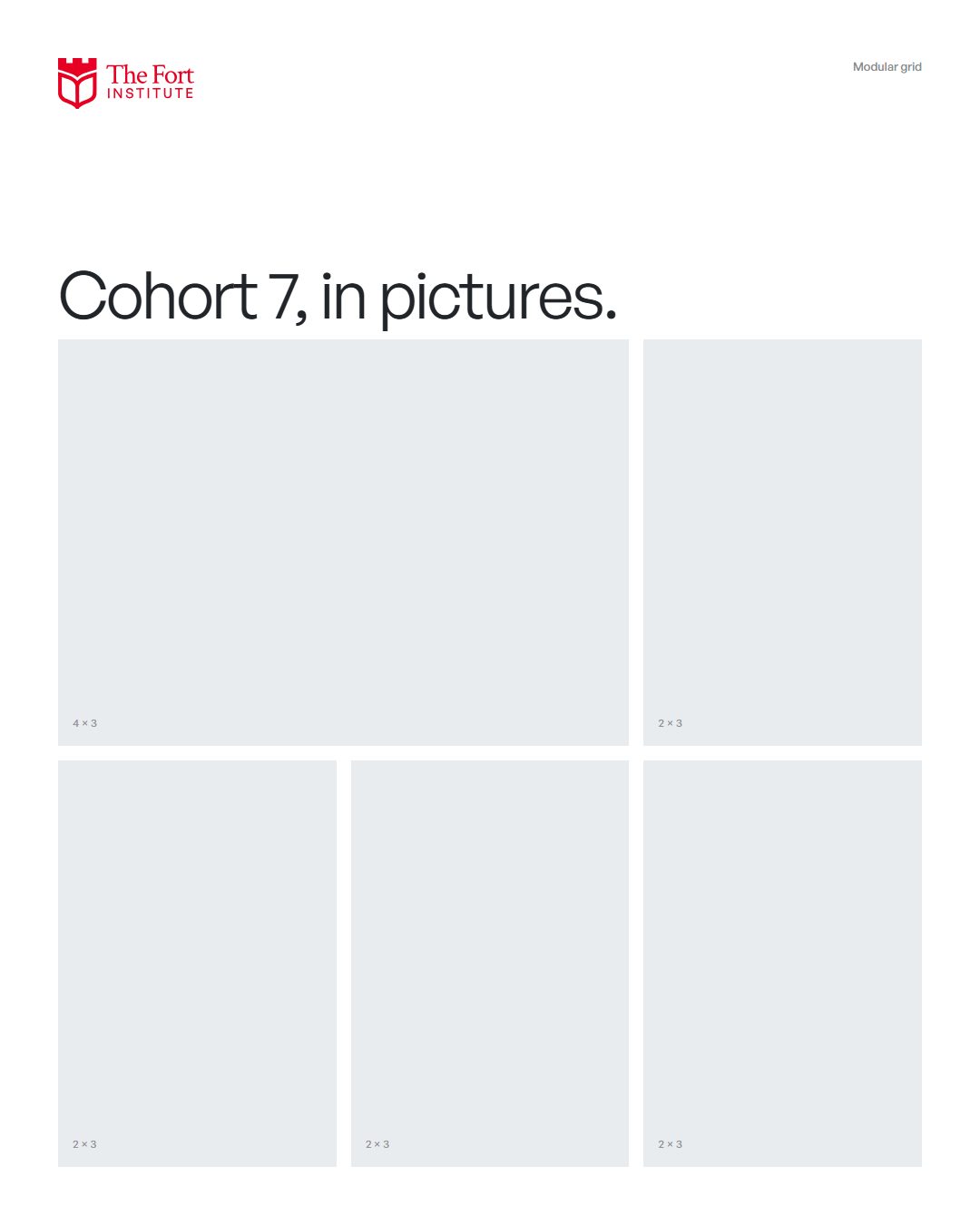
Modular
Columns crossed by rows, making modules. Good when several things must line up in both directions.
Carousels, data, multi-image posts, programmes.
Manuscript
One wide text block inside generous margins. Calm and readable.
Letters, certificates, long reads, email.
Hierarchical
Two zones of different widths and a hangline that everything hangs from. Gives one zone clear priority.
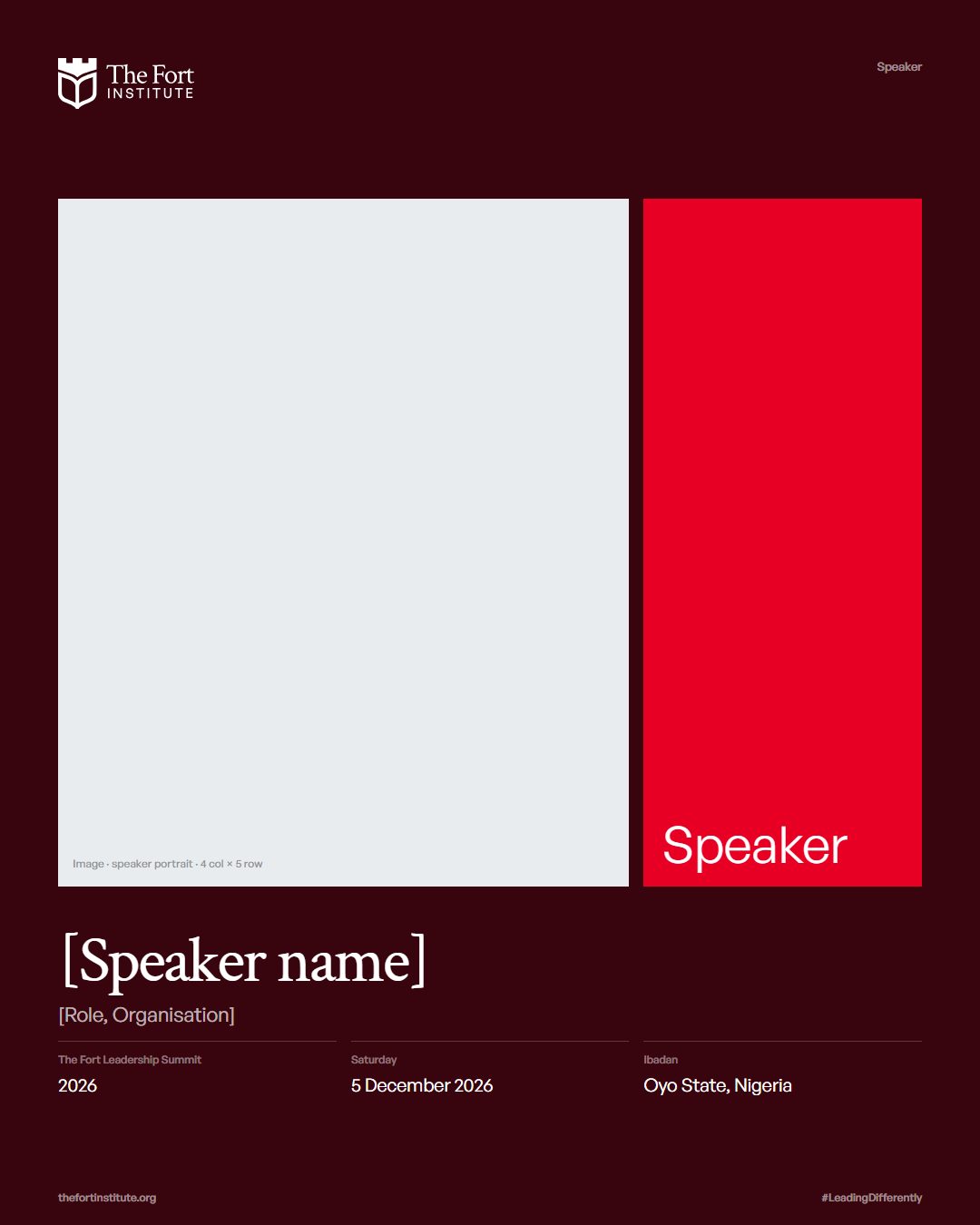
Speaker cards, websites, reports with a sidebar.
Baseline
A fine horizontal rhythm that all text sits on, so lines across columns align.
Documents with a lot of text, reports, newsletters.
Formats
Columns · margin · gutter, in pixels at full size. These are the TFI defaults the studio loads.
| Format | Size | Columns | Rows | Use | |
|---|---|---|---|---|---|
| Feed 4:5 | 1080 × 1350 | 6 · 60 · 20 | 8 · 60 · 20 | Instagram and LinkedIn default | |
| Square 1:1 | 1080 × 1080 | 6 · 60 · 20 | 6 · 60 · 20 | Carousels, LinkedIn documents | |
| Story 9:16 | 1080 × 1920 | 6 · 60 · 20 | 10 · 60 · 20 | Top 220 and bottom 400 are app interface | |
| Slide 16:9 | 1920 × 1080 | 12 · 96 · 24 | 6 · 96 · 24 | Decks, Sunday modules, screens | |
| Print A4 | 2480 × 3508 | 6 · 177 · 59 | 8 · 177 · 59 | Letterhead, certificates, reports (300 dpi: 15mm margin, 5mm gutter) | |
| Backdrop 2:1 | 2400 × 1200 | 12 · 75 · 25 | 6 · 75 · 25 | Event backdrops, 96 × 48 in (3 in margin, 1 in gutter) |
Layout recipes
Five arrangements cover almost everything TFI publishes. Each one is defined on the grid, not in pixels, so it adapts to every format.
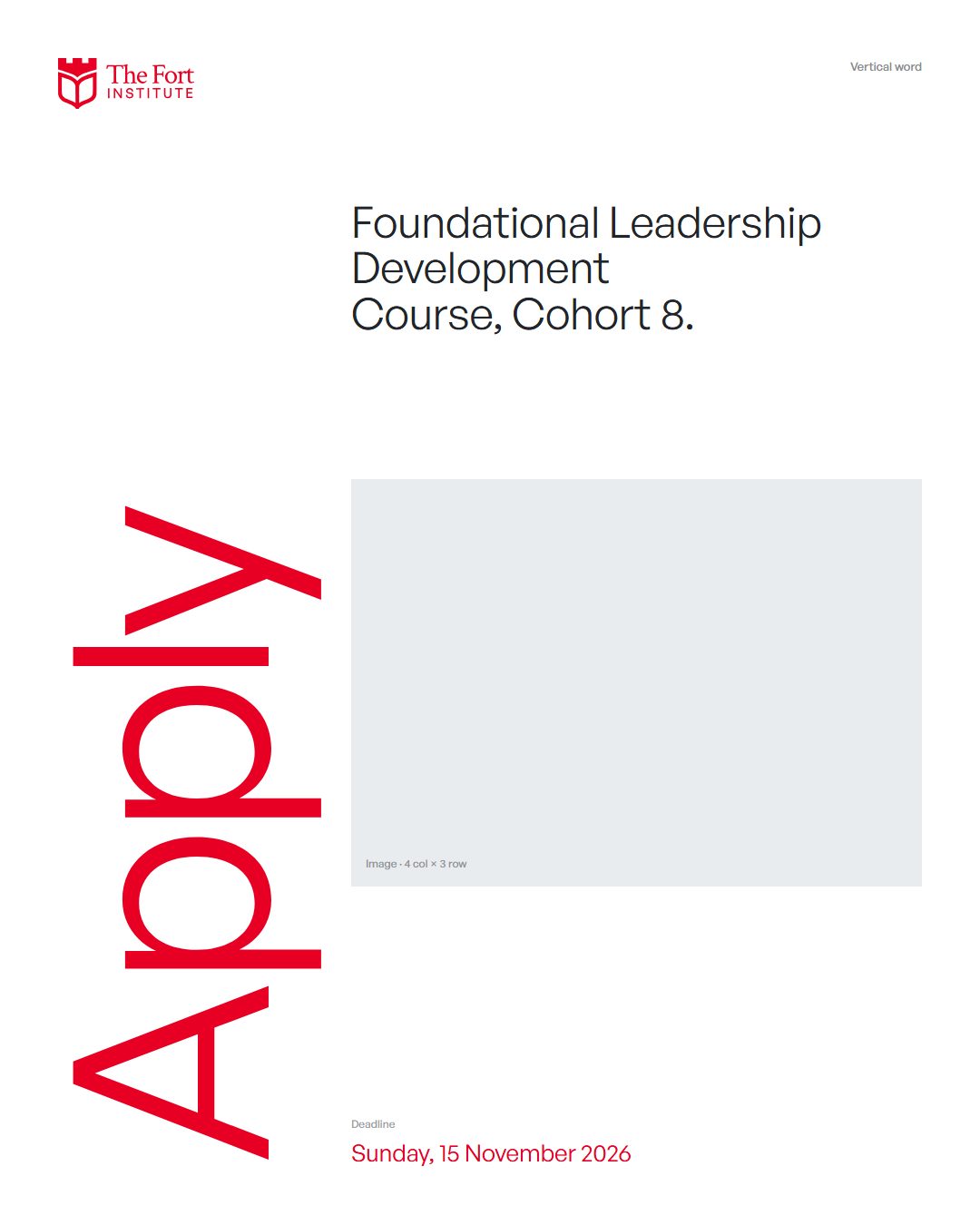
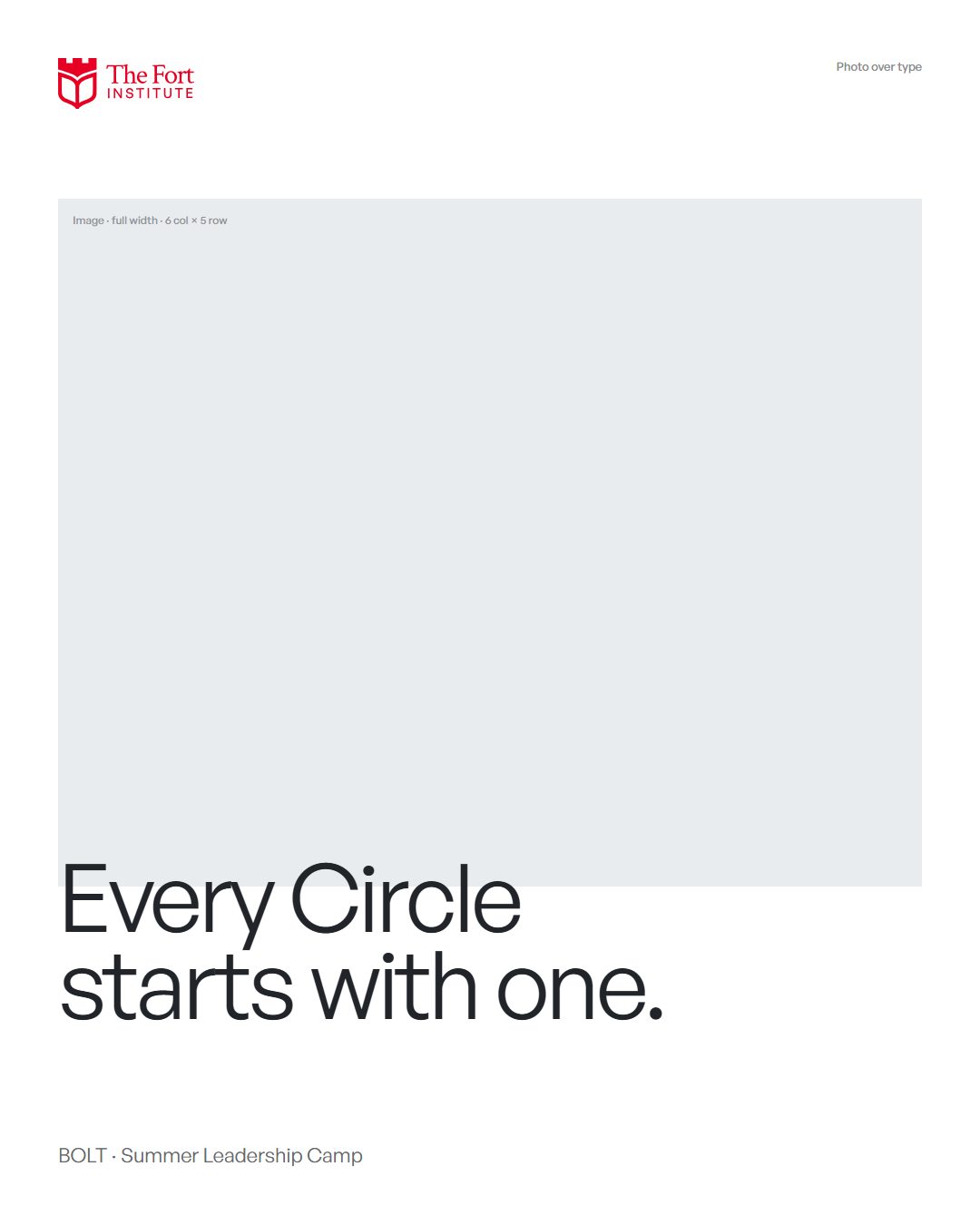
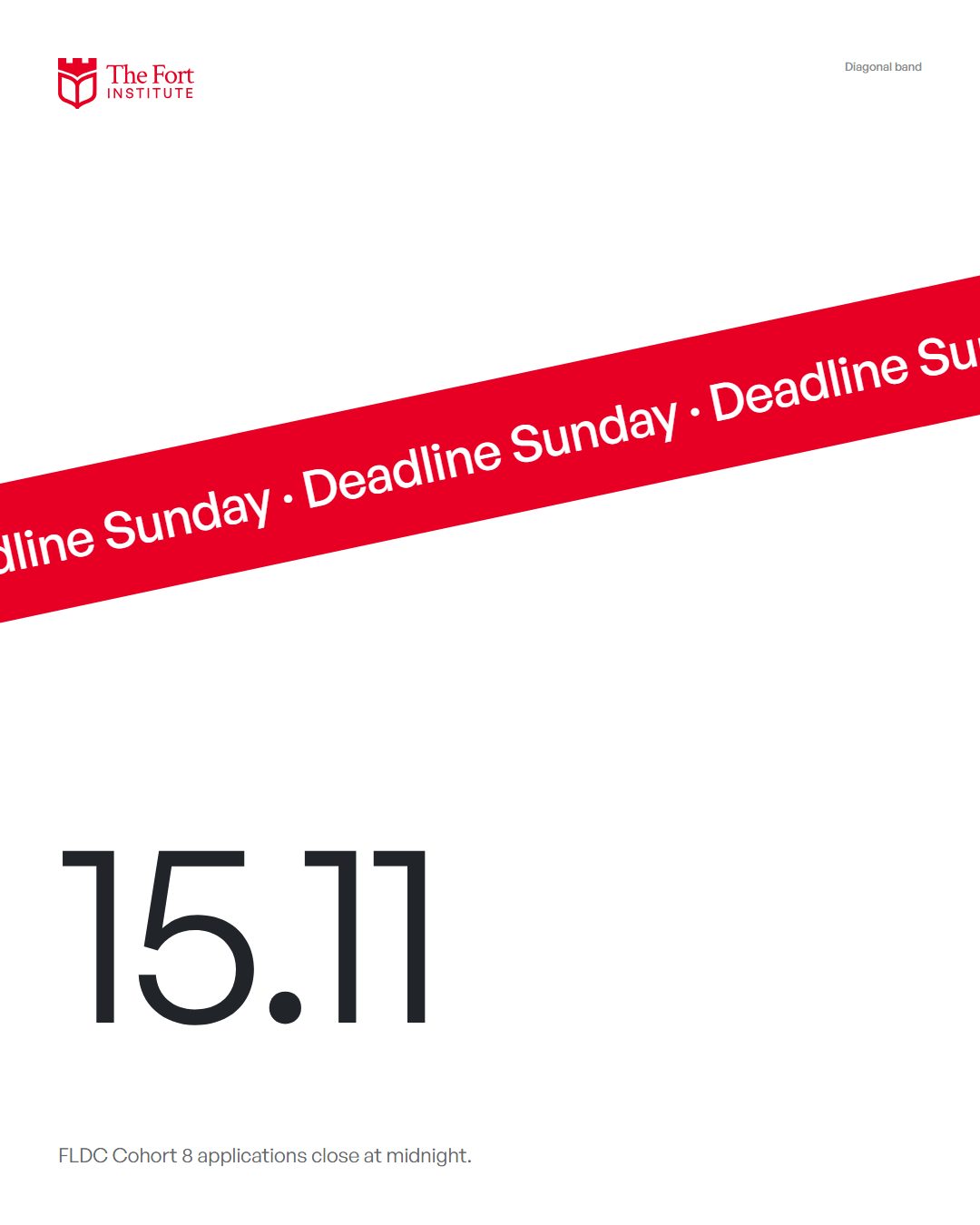
Headline over image
Applications, deadlines
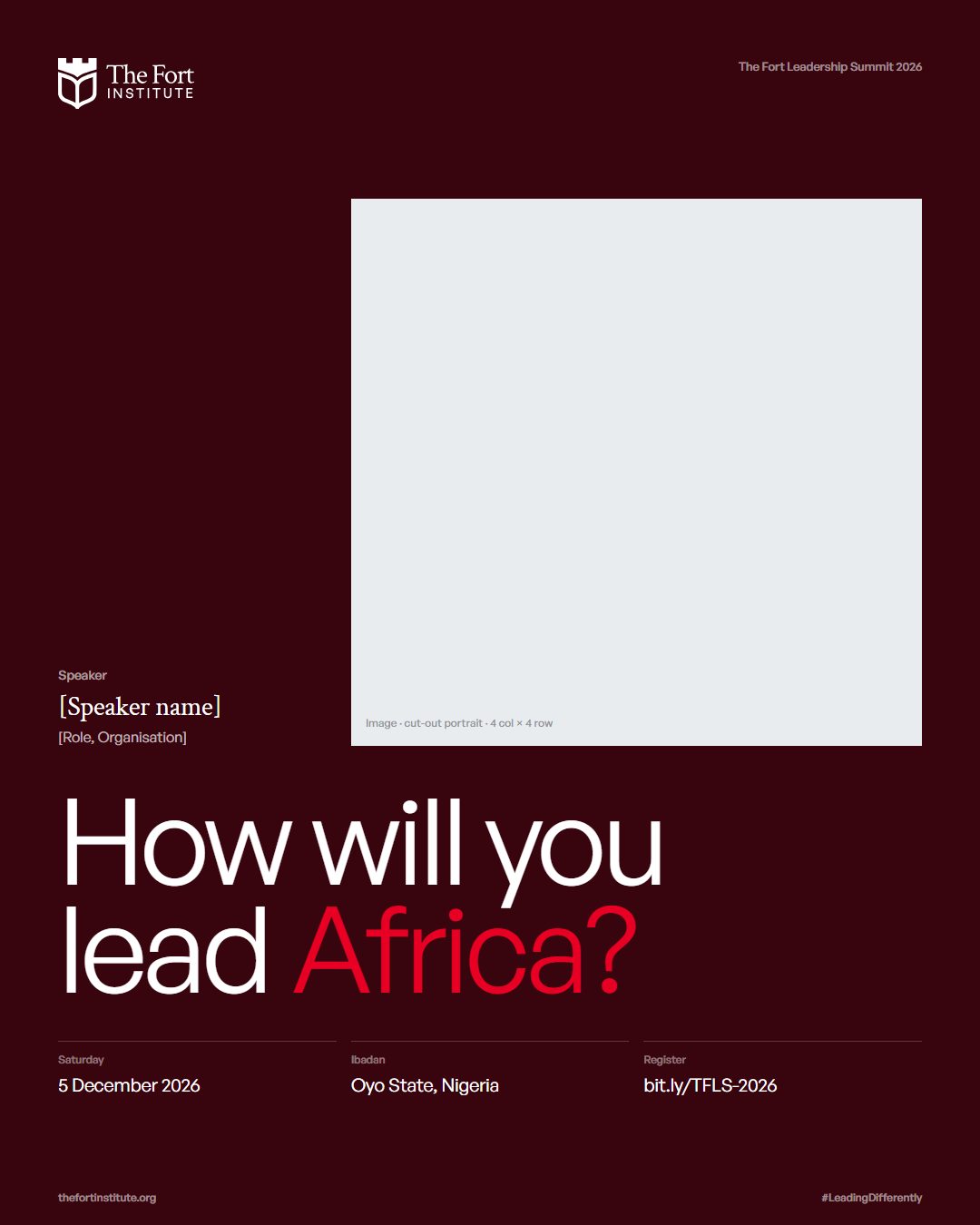
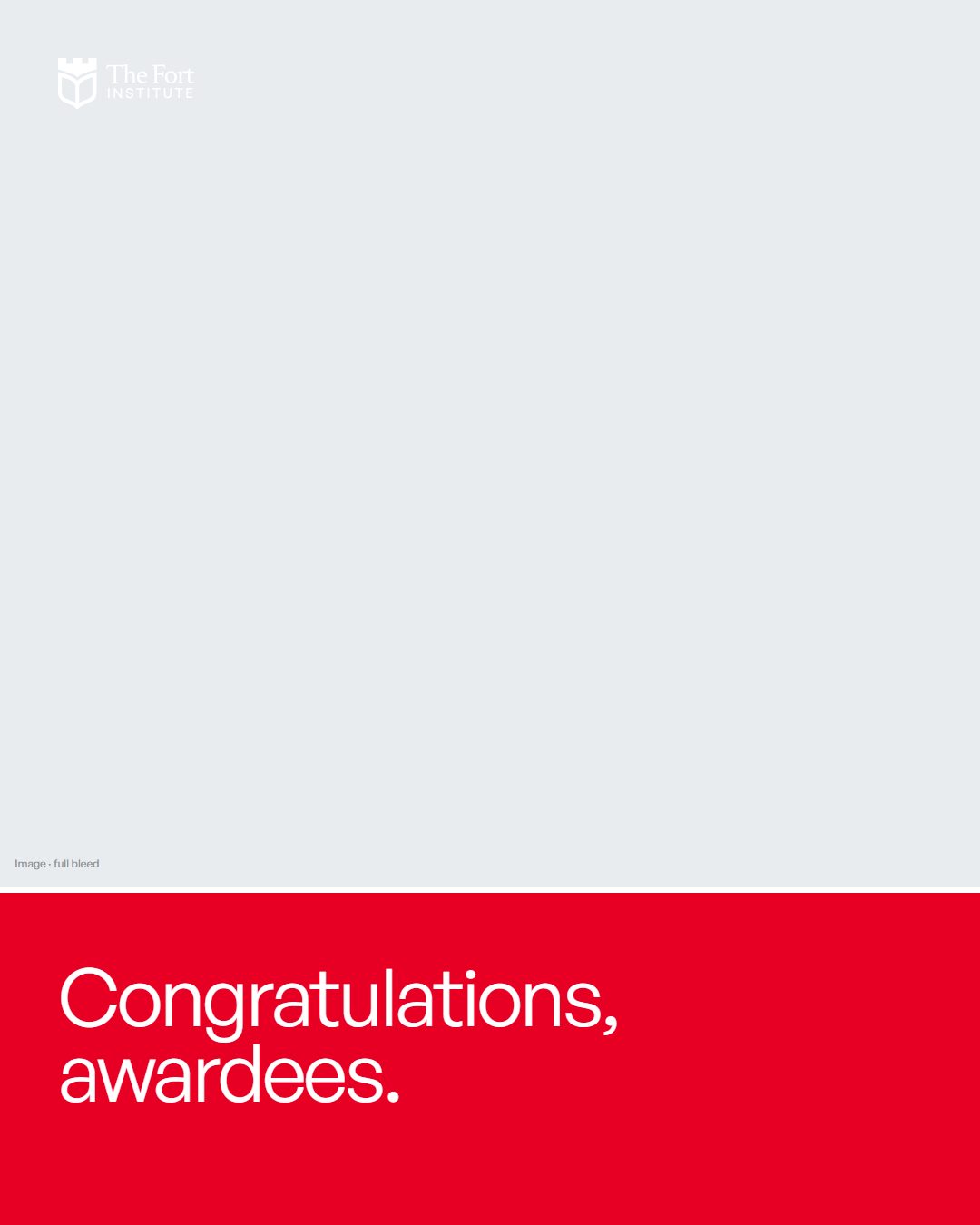
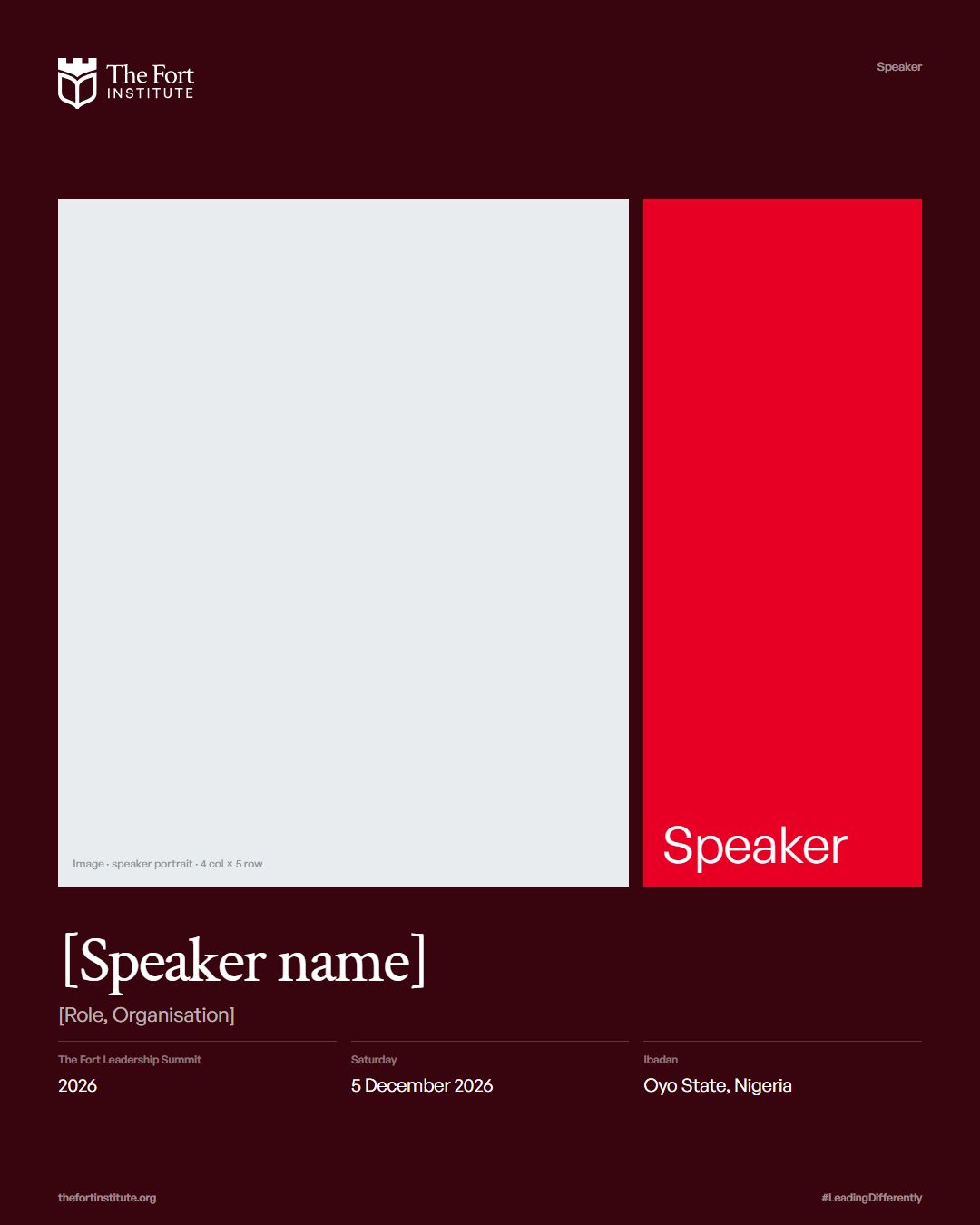
Portrait and name plate
Speakers, birthdays, awards
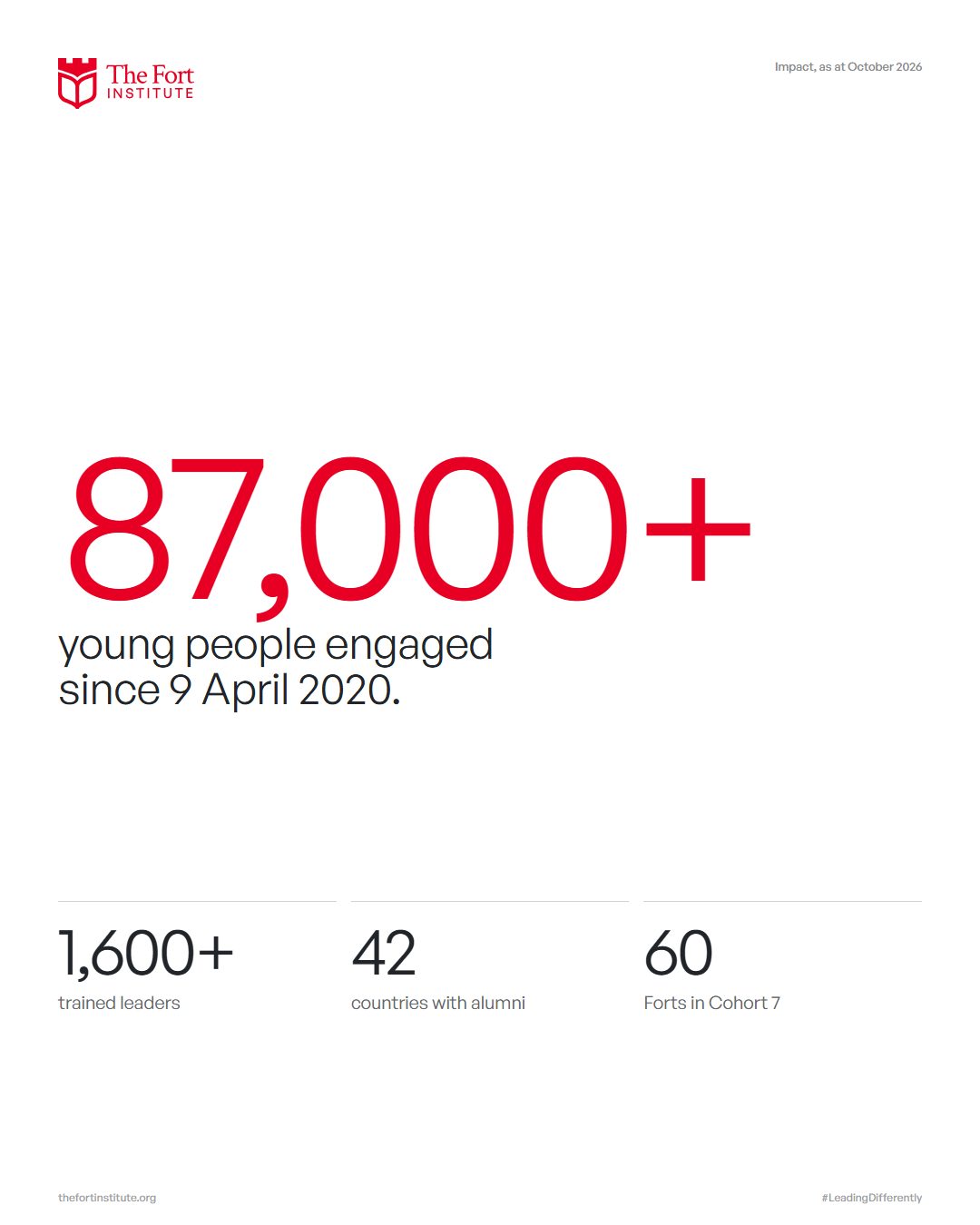
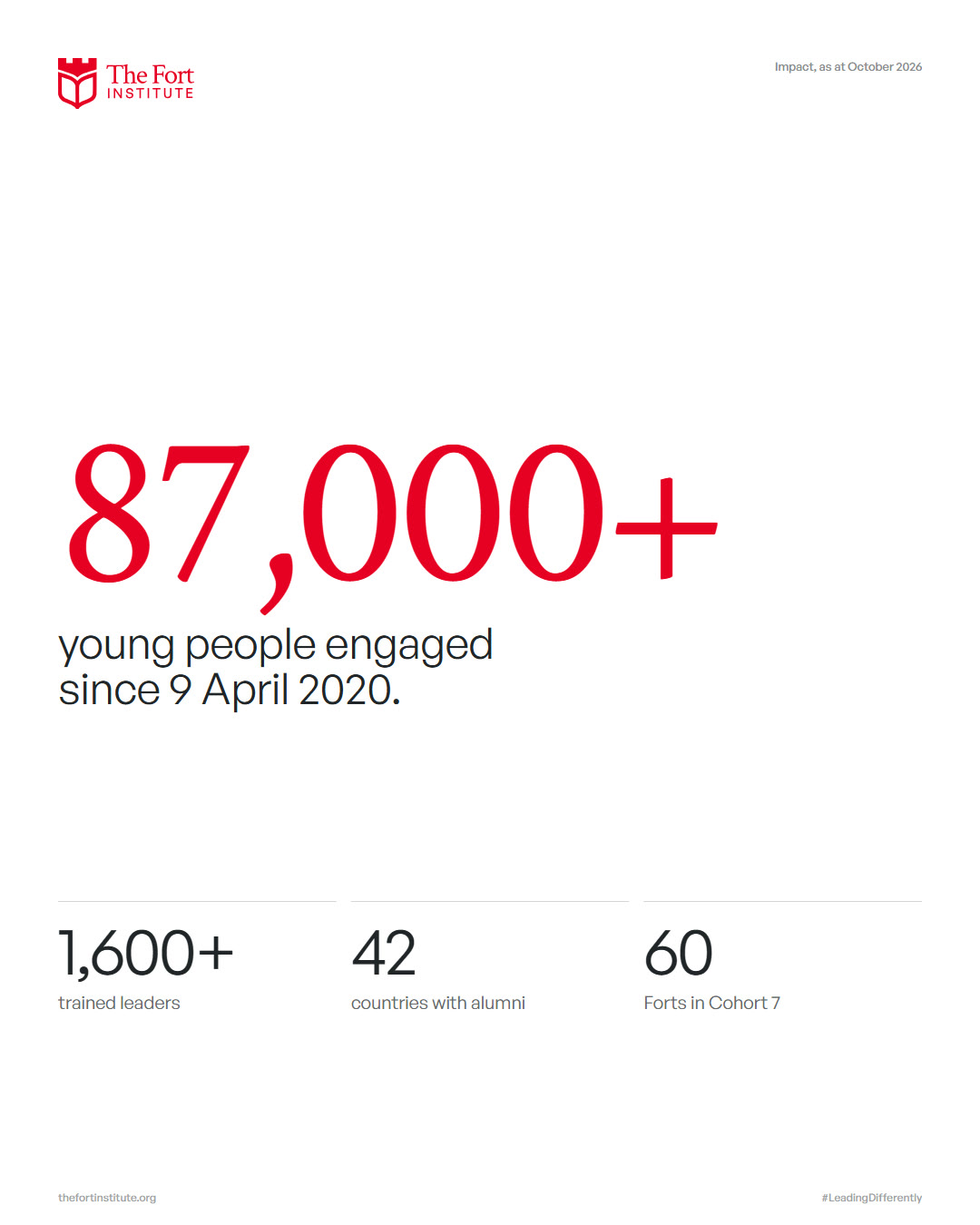
One big number
Milestones, impact, anniversaries
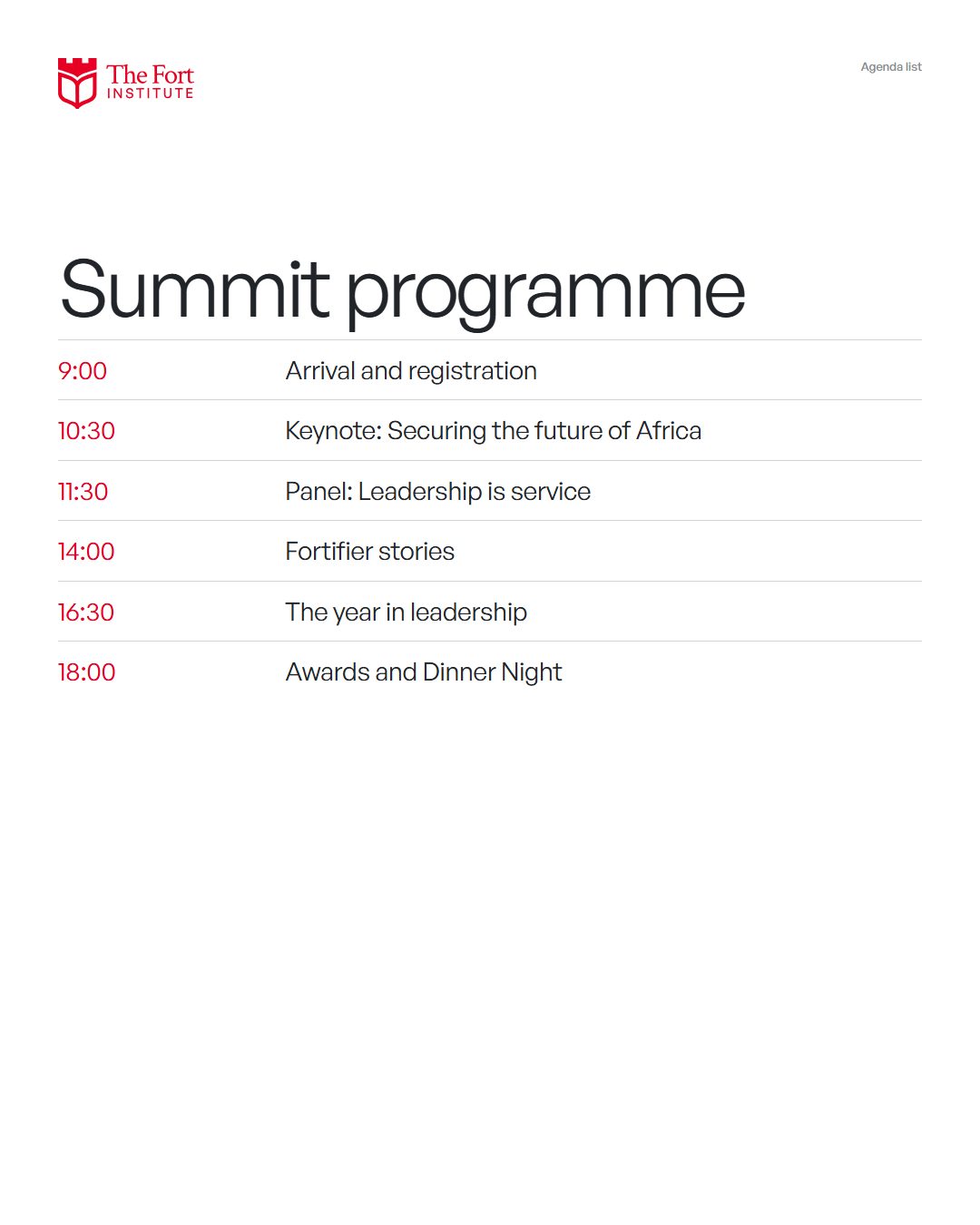
Informative stack
Modules, checklists, notices
Split
Slides, web heroes, wide formats
Fourteen layouts
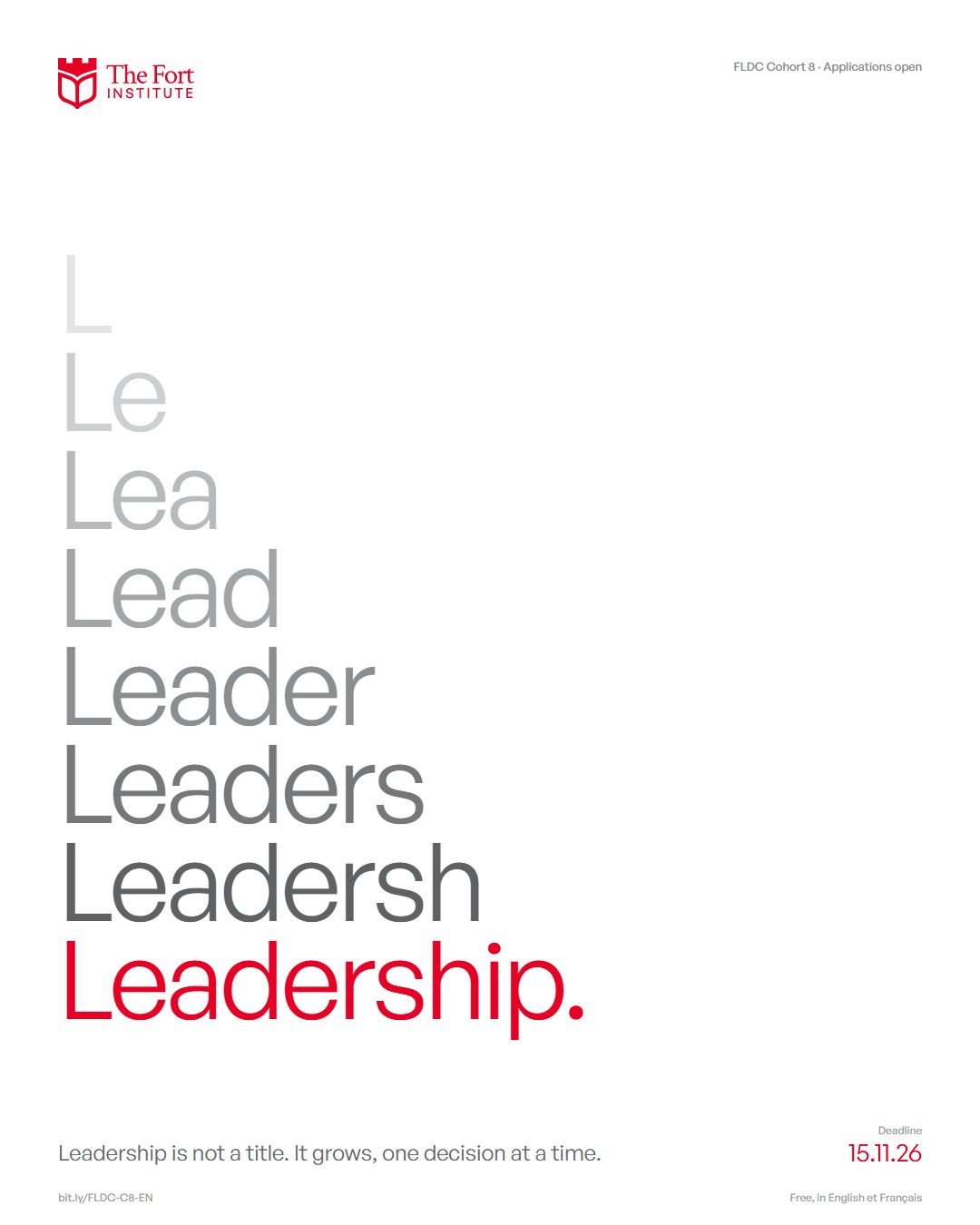
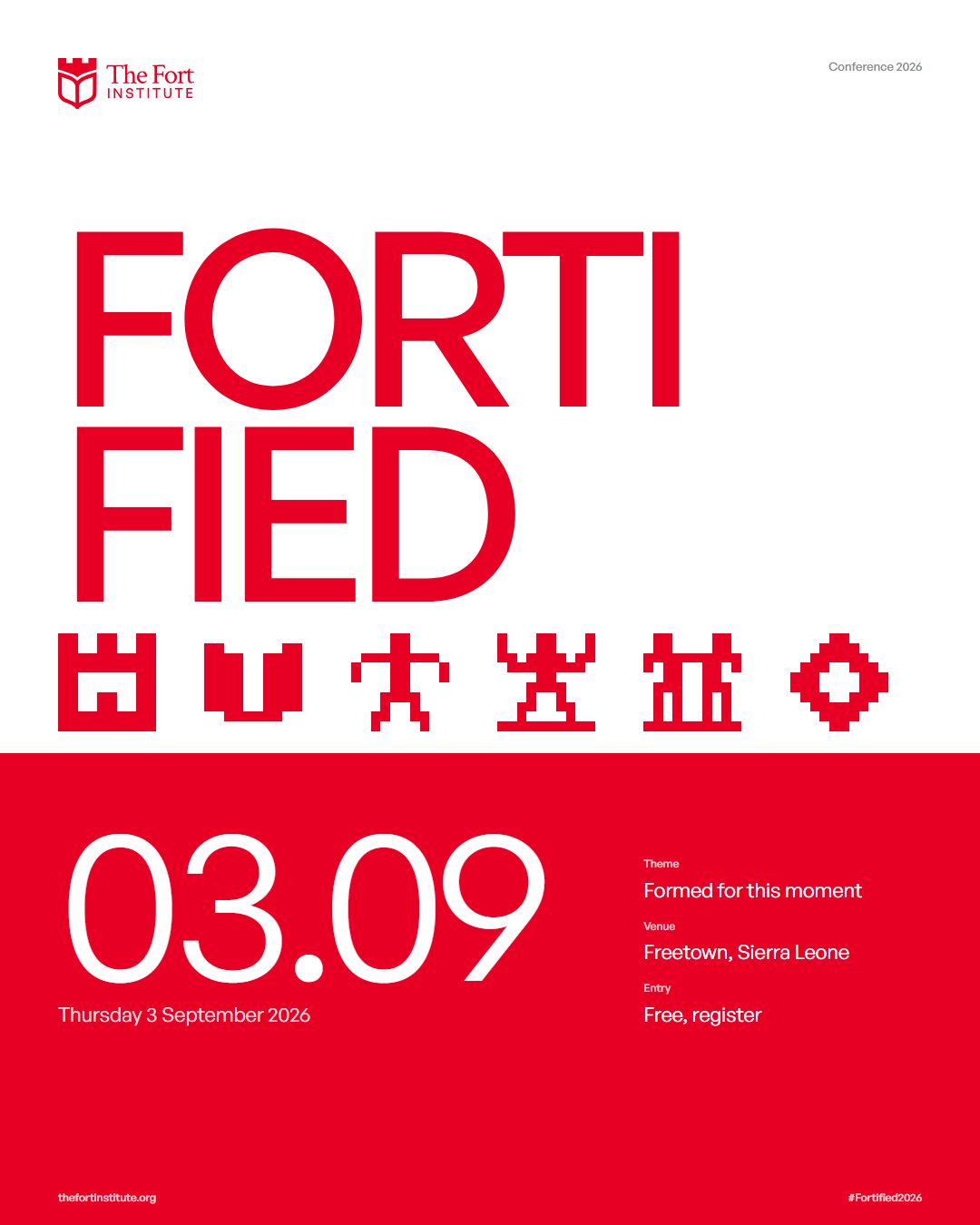
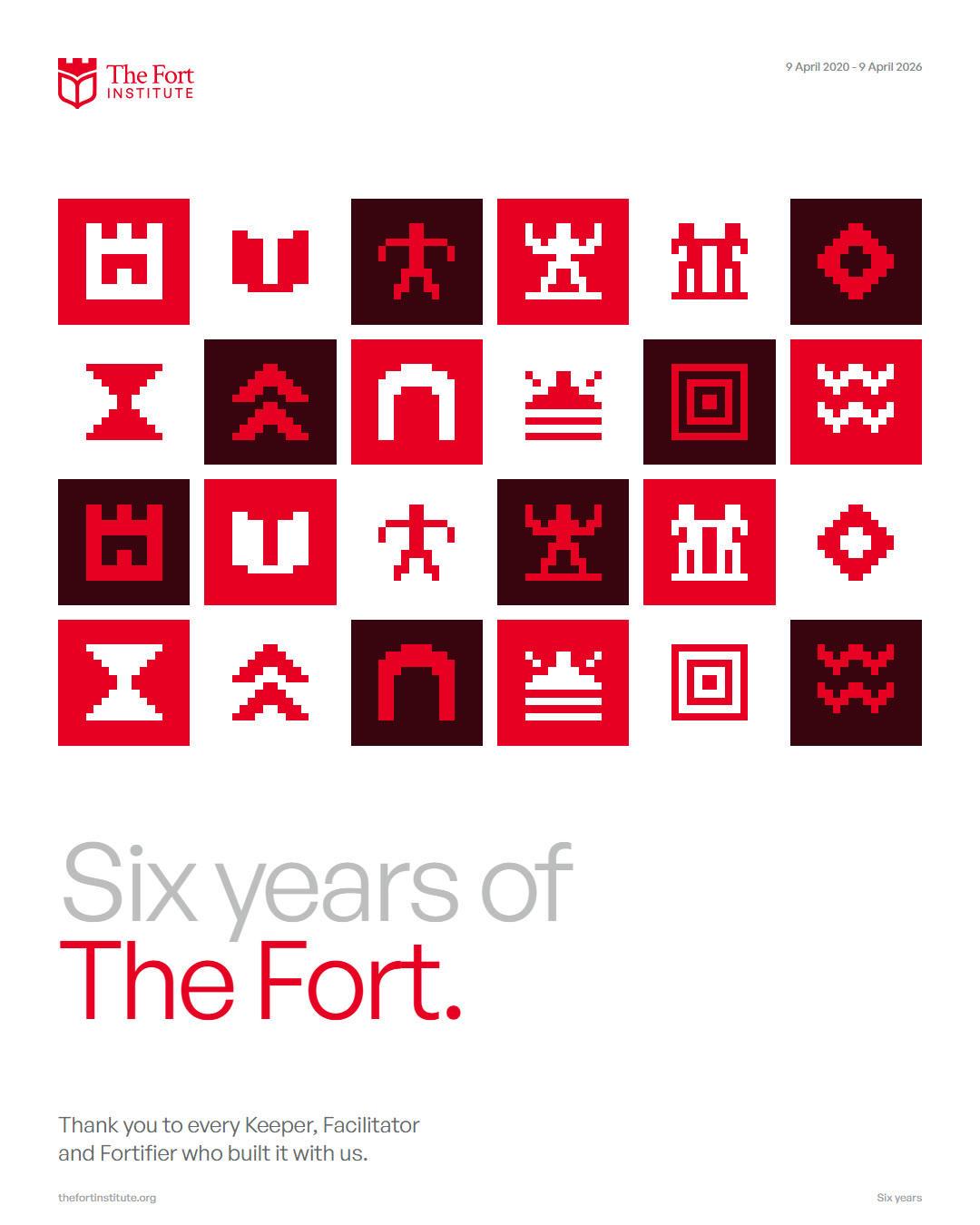
Fourteen different structures on the same 6-column grid, each with a different hero. Pick the layout by the job, and never post the same layout twice in a row.


One hero
Before you design, decide which element is the hero: an image, a headline or a number. Every other element supports it. Two heroes is no hero.

Loud and quiet
Every piece sits somewhere between loud and quiet, and between informative and exciting. Decide where yours sits before you start.
 Centre: speaker card
Loud · informative
Applications, deadlines: big type on the grid.
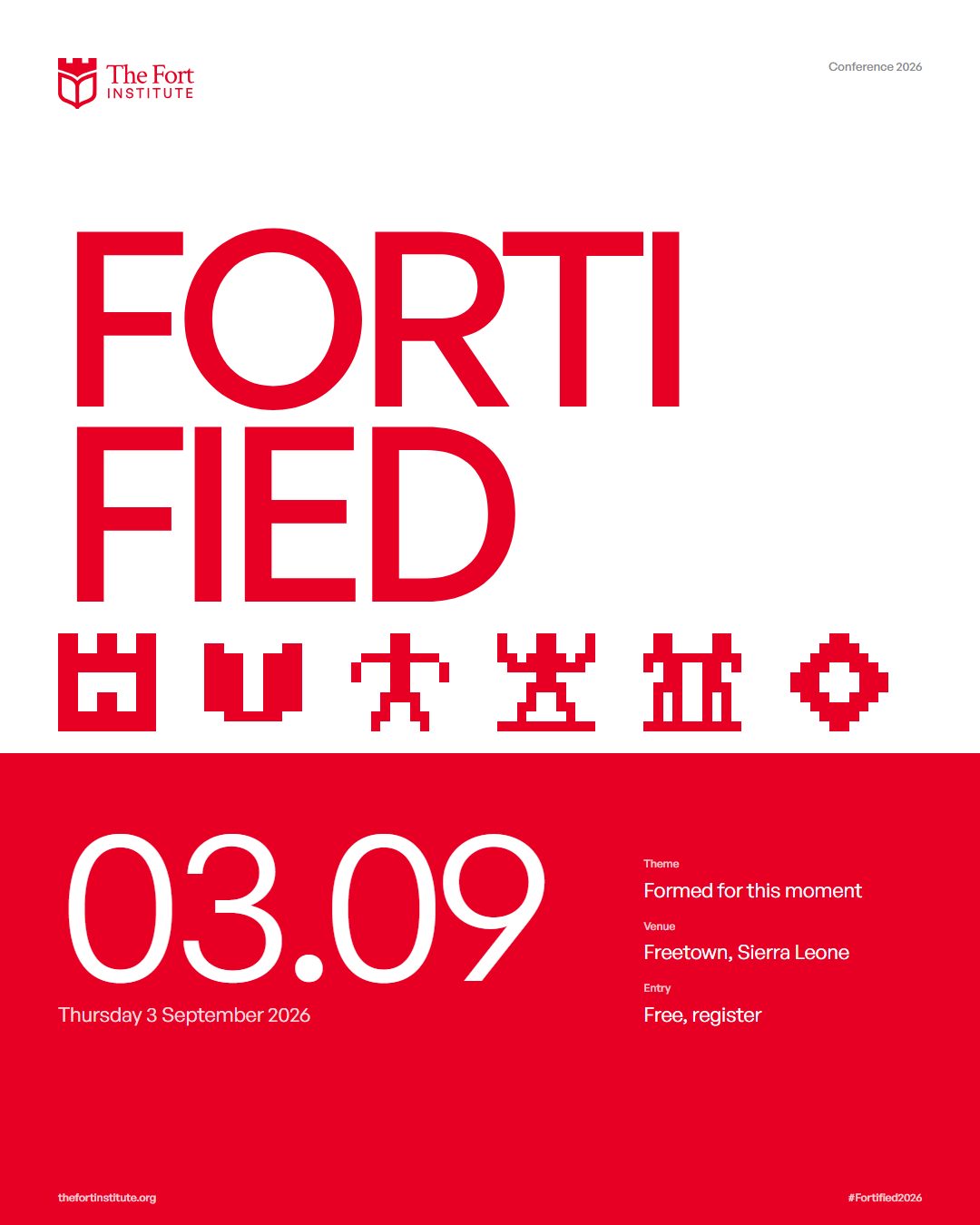
Loud · exciting
Events, launches: one hero, Fort Glow allowed.
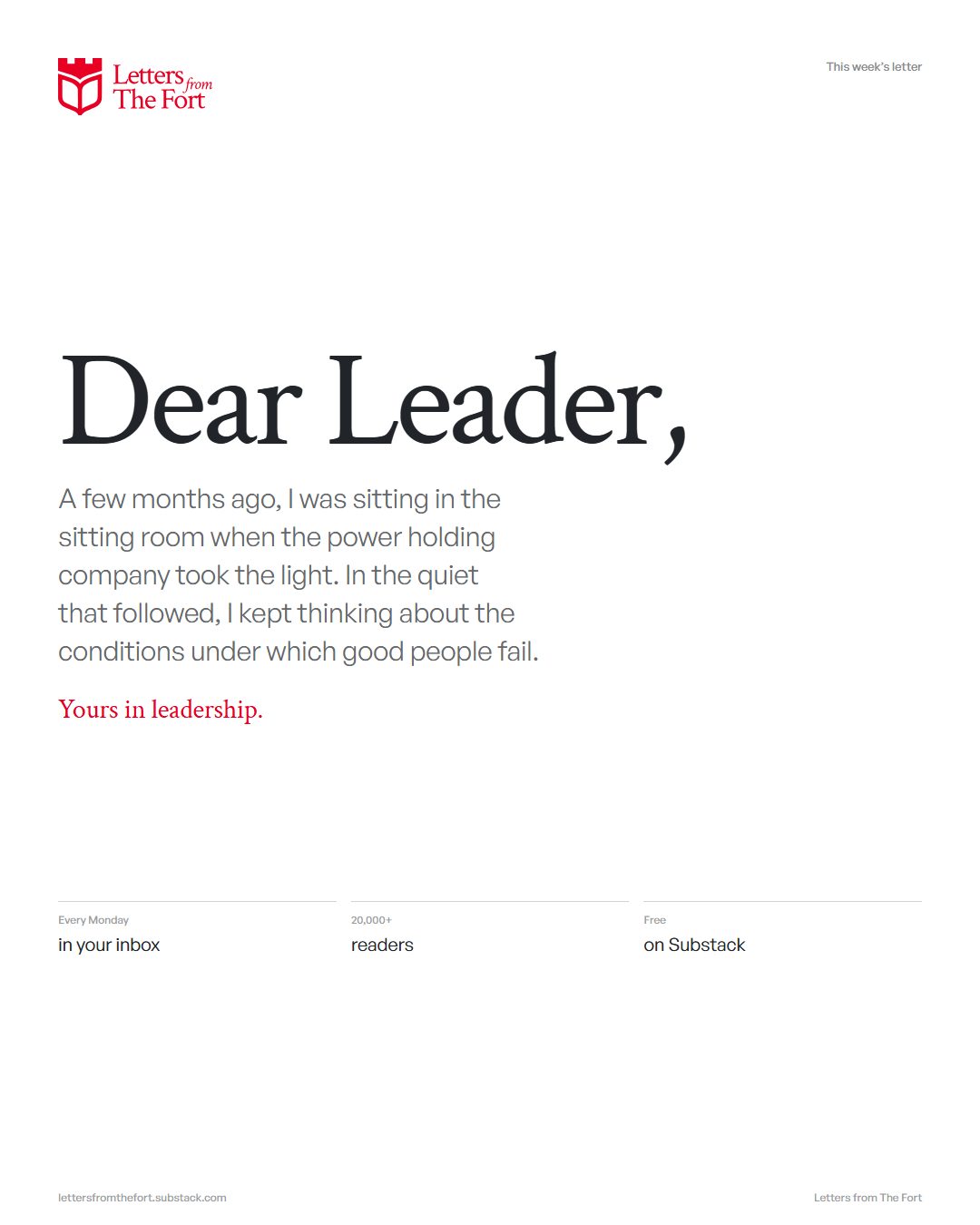
Quiet · informative
Checklists, emails, letters: small type, generous space.
Quiet · exciting
Collage, tributes: one image, few words.