Video.
Most of our video is filmed by Fortifiers, Facilitators and partners on their own phones. These rules let anyone make a video that looks like TFI in about fifteen minutes, without being an editor.
Why video needs rules
Video is where our brand breaks most: every editor app offers different fonts, every phone frames differently, and captions land wherever the app puts them. Three fixes keep it ours: a short list of fonts for each kind of app, one caption style in one place, and a kit of ready-made overlays.
Three ways to get it done
Send raw clips
If you can, send the TFI team your unedited clips. We add captions and overlays.
Edit it yourself
If you must post today, follow the ten-minute edit and use the overlay kit.
Check before posting
Watch it once with the sound off. If you can follow it, post it.
Type for video
Use the highest tier your app allows. Never mix tiers inside one video. The ten-second check: open the app’s font list and type “General Sans”, then “DM Sans”. The first one you find decides your tier; if neither is there, use tier 3.
Tier 1 · Brand fonts
Laptop, CapCut desktop, Canva Pro, Premiere
Sans · titles and captions
Lead differently.
General Sans
Serif · names and quotes
Lead differently.
Crimson Text
Install both once. Both are free: General Sans from Fontshare, Crimson Text from Google Fonts.
Tier 2 · Video alternates
Canva free, CapCut, phone editors
Sans · titles and captions
Lead differently.
DM Sans
Serif · names and quotes
Lead differently.
EB Garamond
Free Google Fonts that feel like ours. Medium for captions, Regular for titles.
Tier 3 · In-app styles
Instagram and TikTok text tools, no setup
Sans · titles and captions
Lead differently.
Instagram ‘Classic’ · TikTok ‘Classic’
Serif · names and quotes
Lead differently.
Instagram ‘Literature’ · TikTok ‘Serif’
Built into the apps. Shown here with stand-ins; the apps’ own faces differ slightly. Never the script, neon or bubble styles.
Captions and safe zones
Captions are the most-read words we publish. One style, one place, every time. Try yours below: the checker wraps it the way an app would and tells you what to fix.
Press Enter to break the line at a natural pause. Optional: put one keyword in *stars* to set it on a Fort Red plate.
Font tier
Font and size
Sans, Medium. 54 px on a 1080 × 1920 video; in apps, the size where two lines fill about two thirds of the width.
Lines
Two lines at most, about 30 characters a line. Break at a natural pause.
Colour
White words on an Ink plate with 12 px rounded corners. Never words on bare footage. At most one keyword per video may sit on a Fort Red plate. Optional.
Place
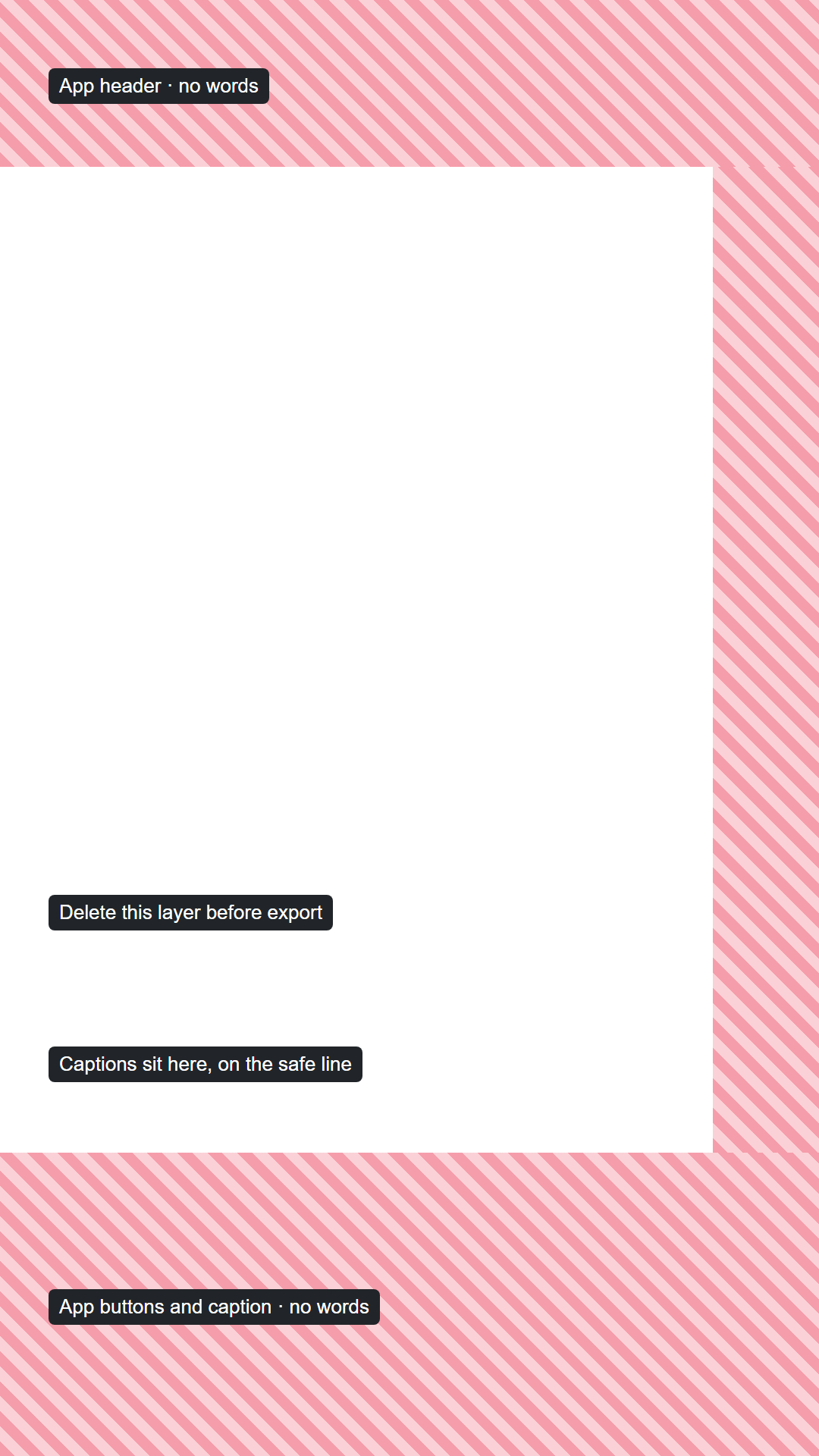
Centred, the plate sitting on the 400 px line. Nothing in the top 220 px (11% of the height), the bottom 400 px (21%) or the right 140 px (13% of the width): the apps put their buttons there.
Case
Sentence case. No ALL-CAPS sentences, no emoji inside captions.
Check
Auto captions get our names wrong. Read every line: Fortifier, FLDC, Fort, Keeper.
Eight templates
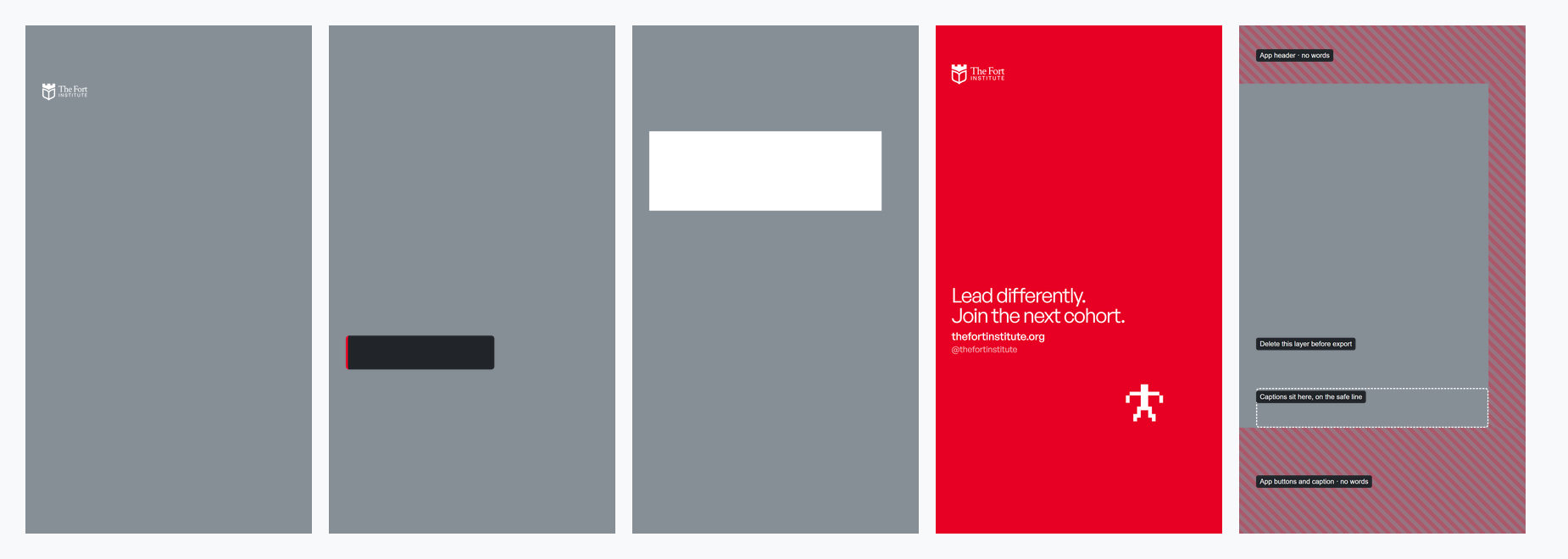
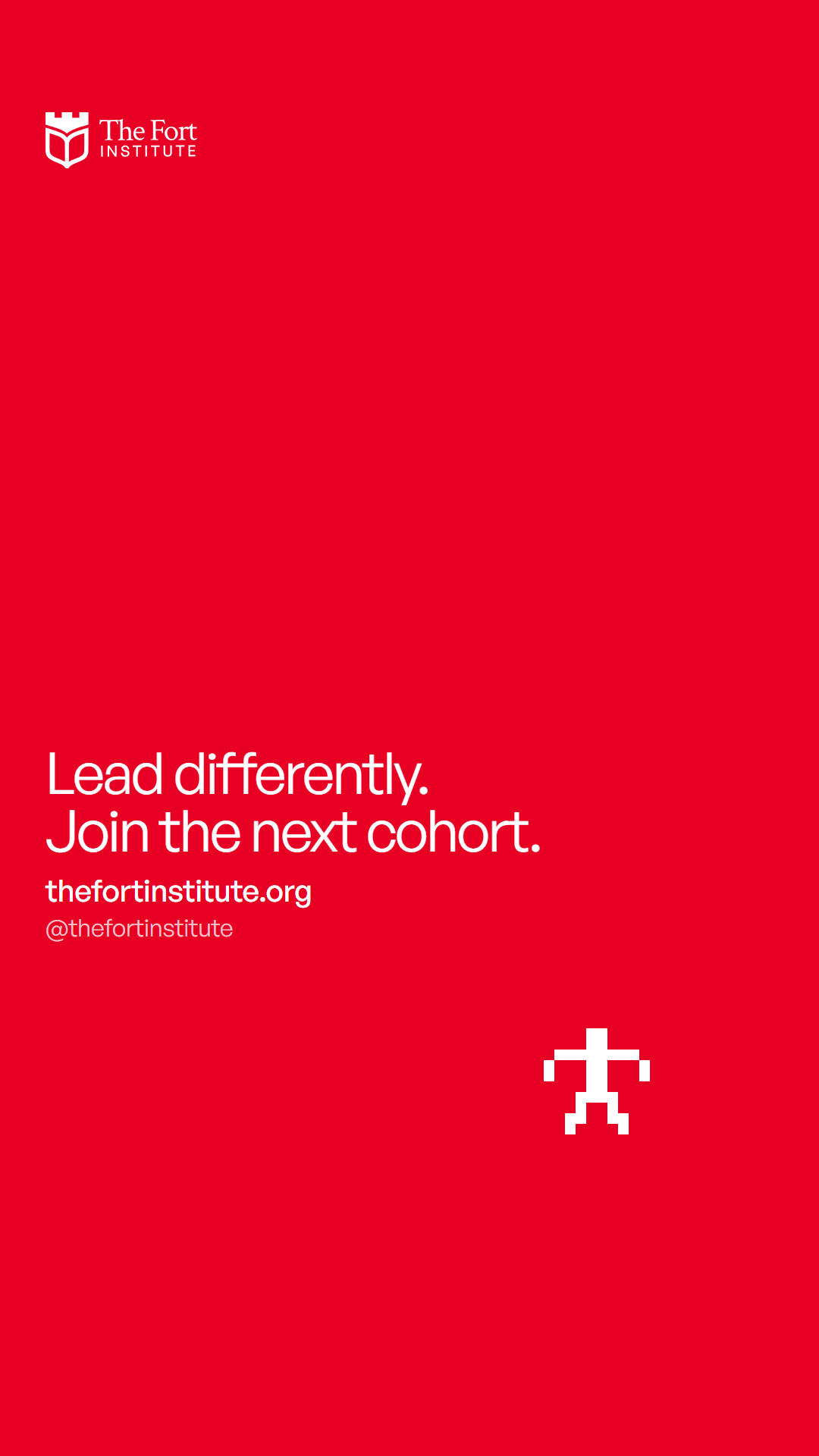
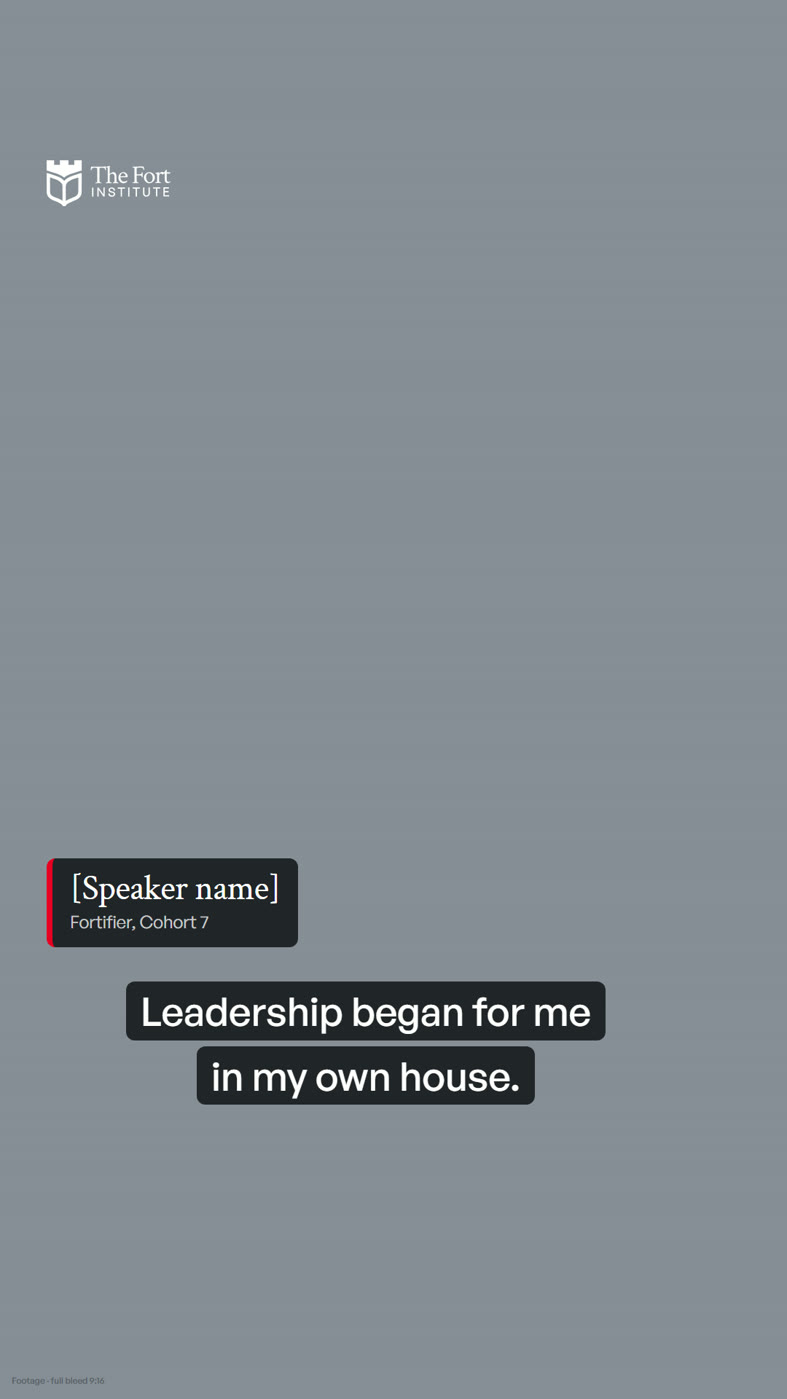
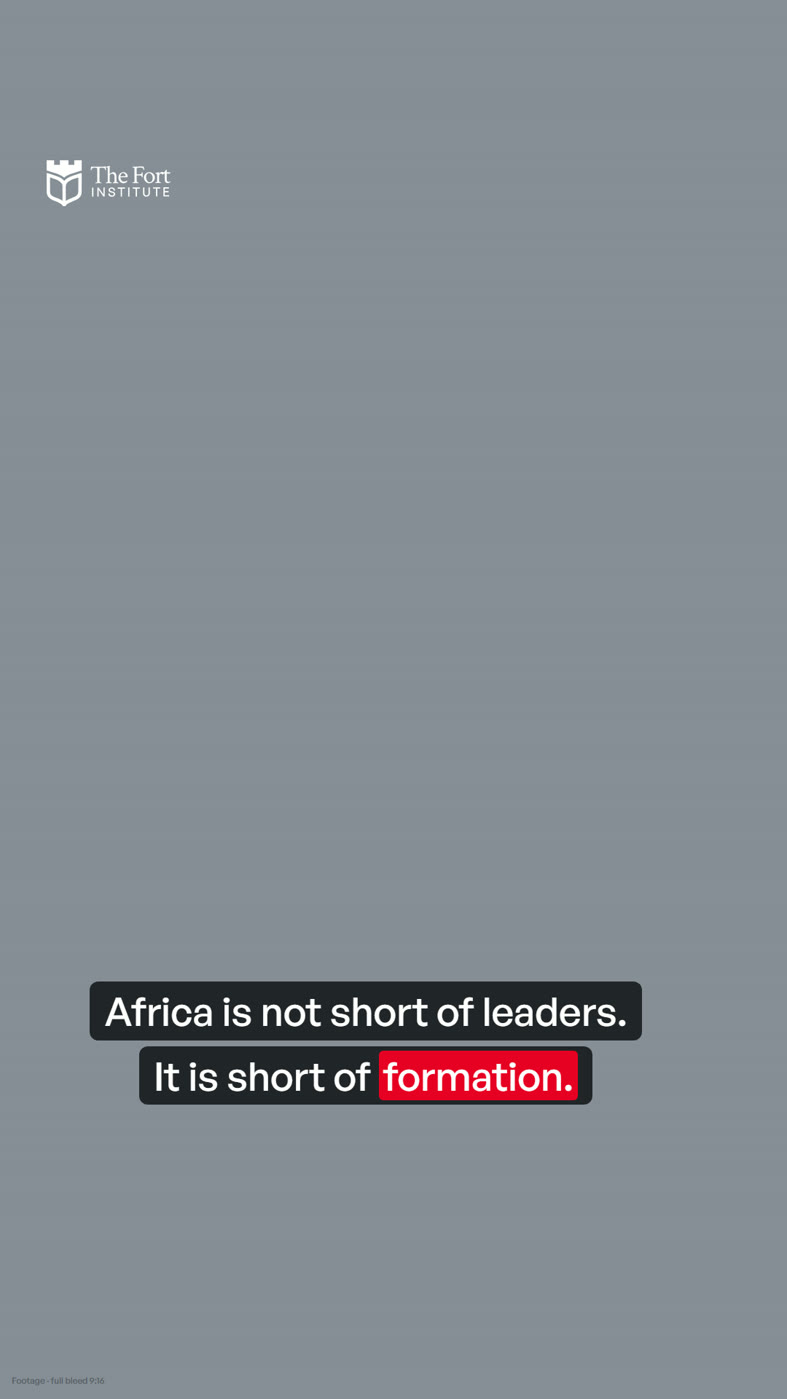
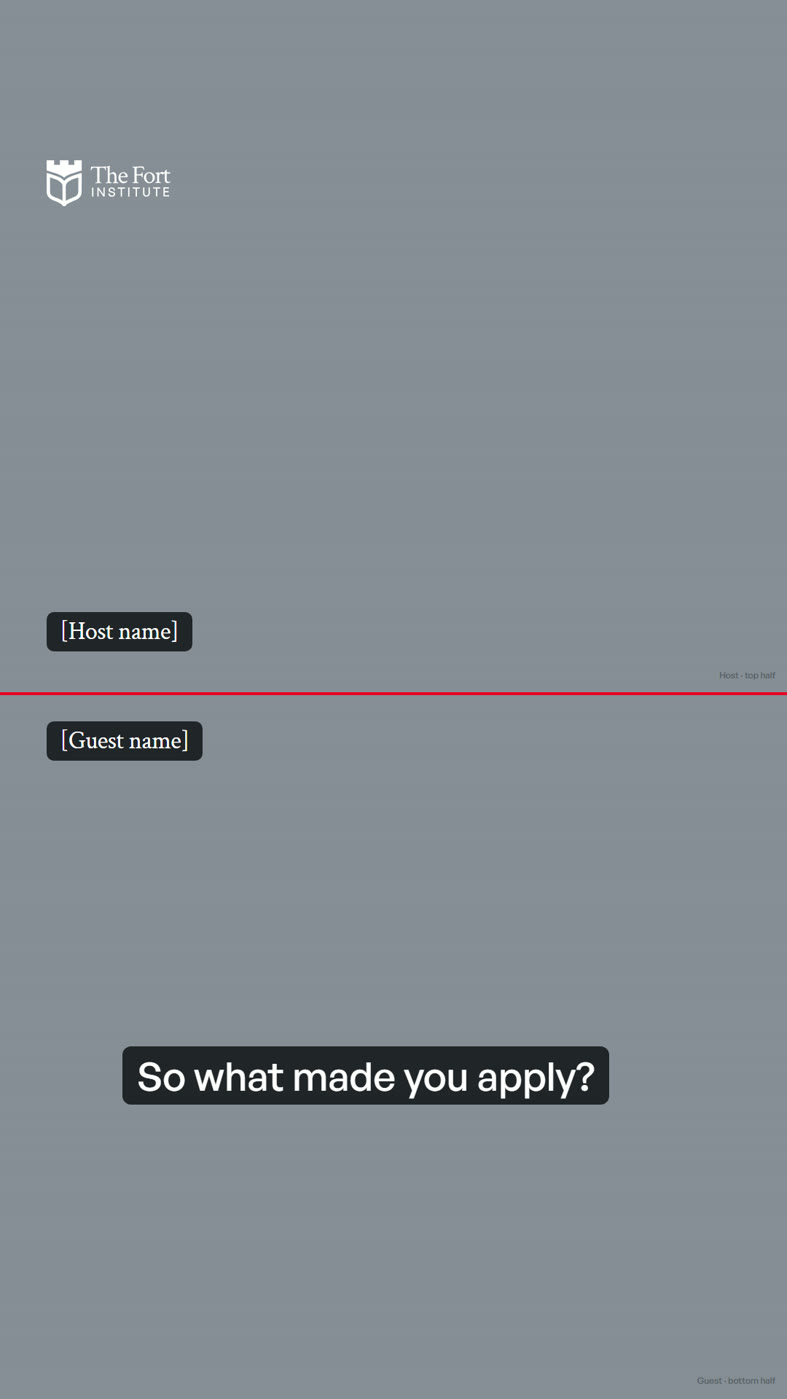
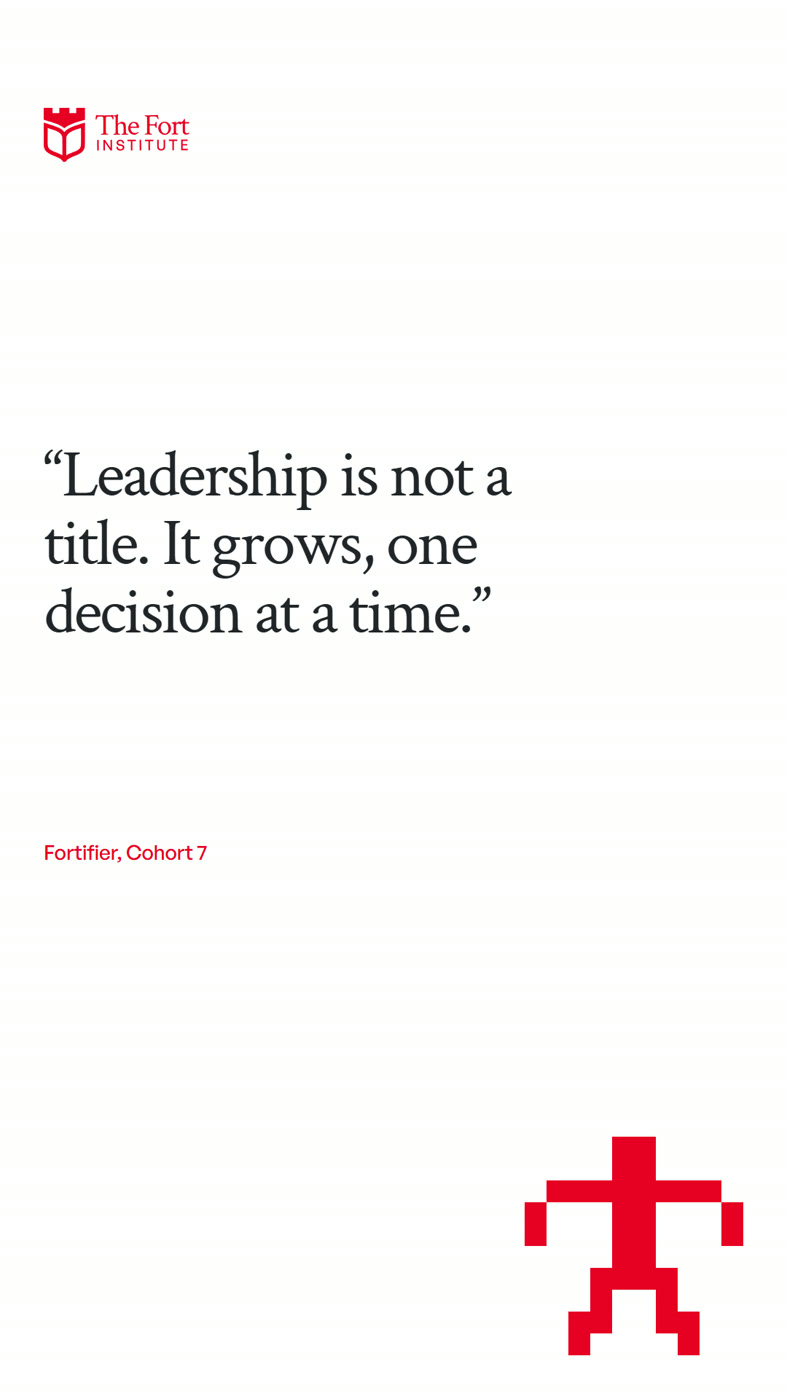
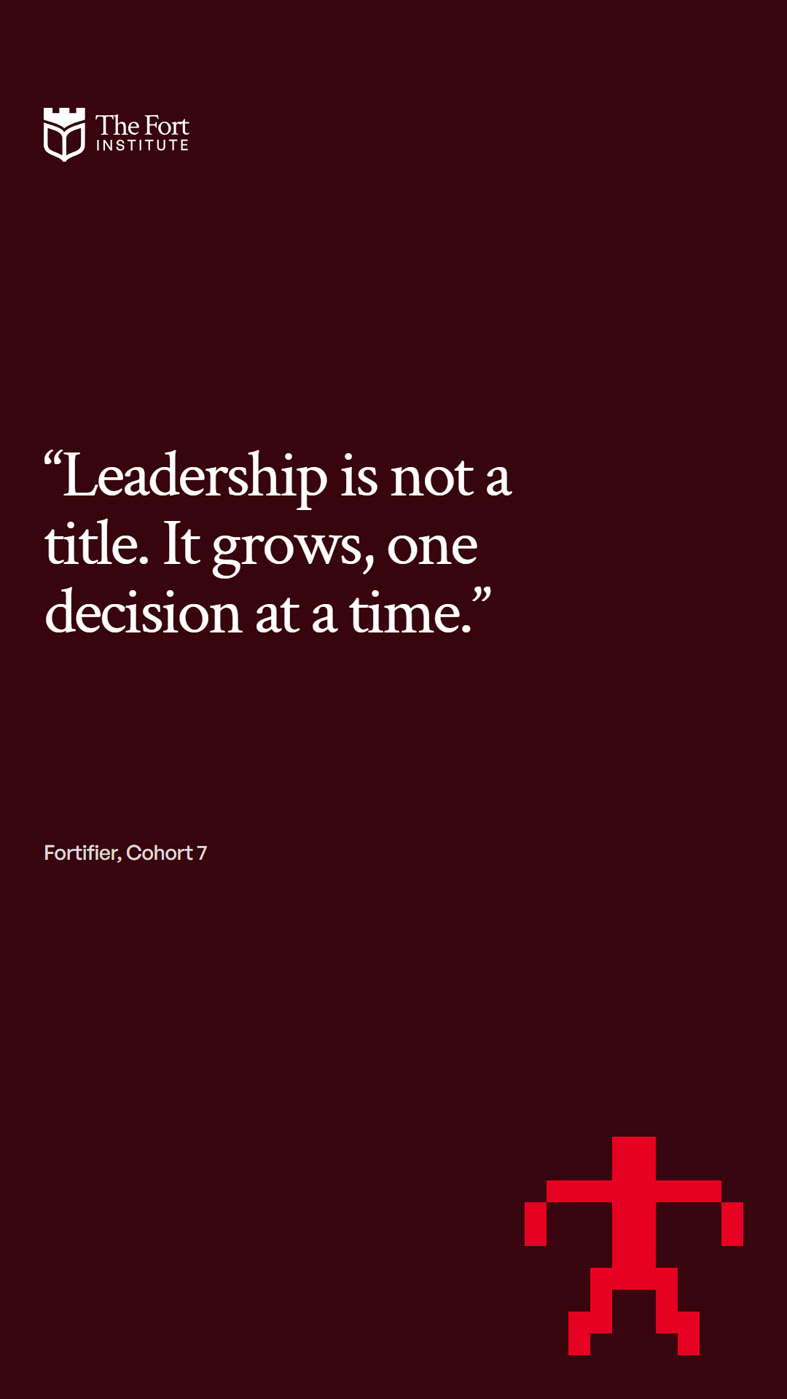
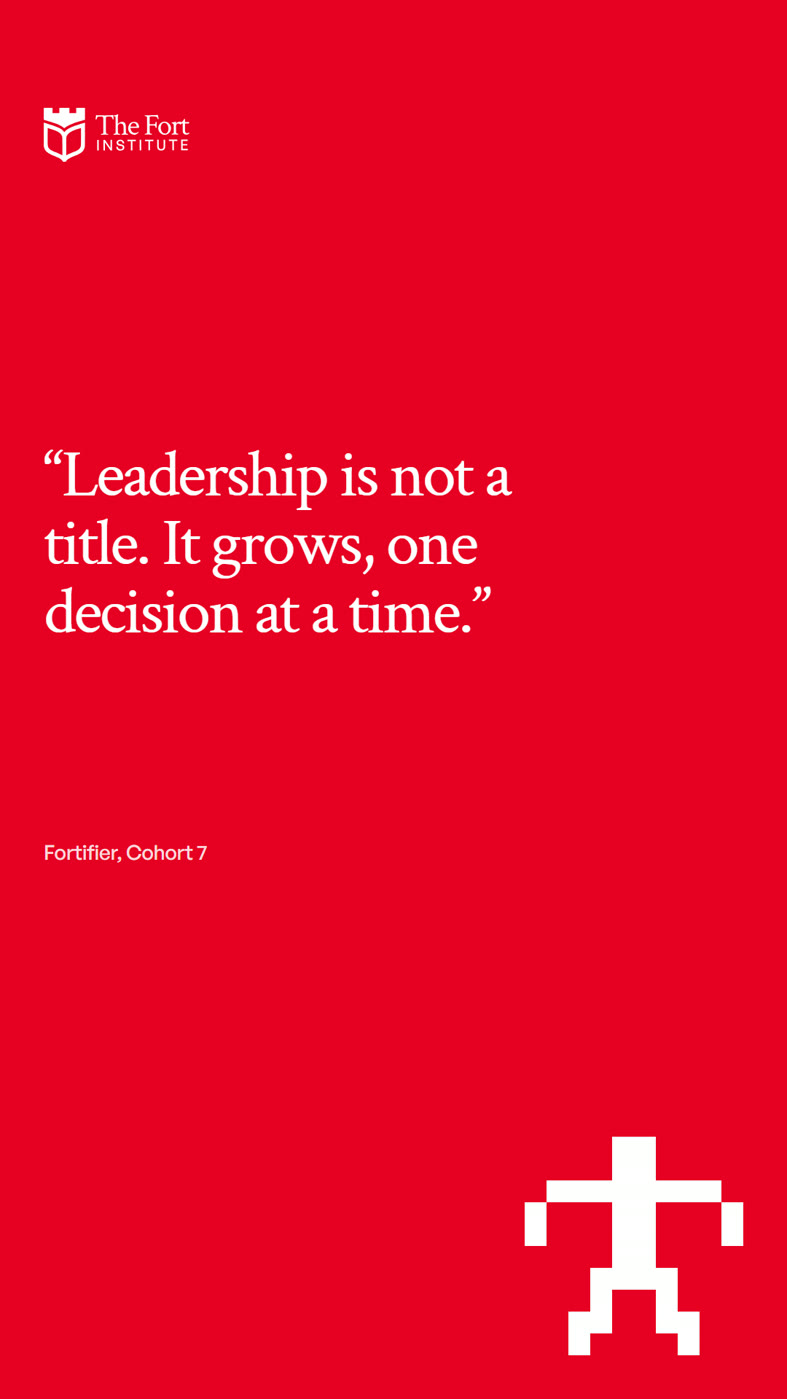
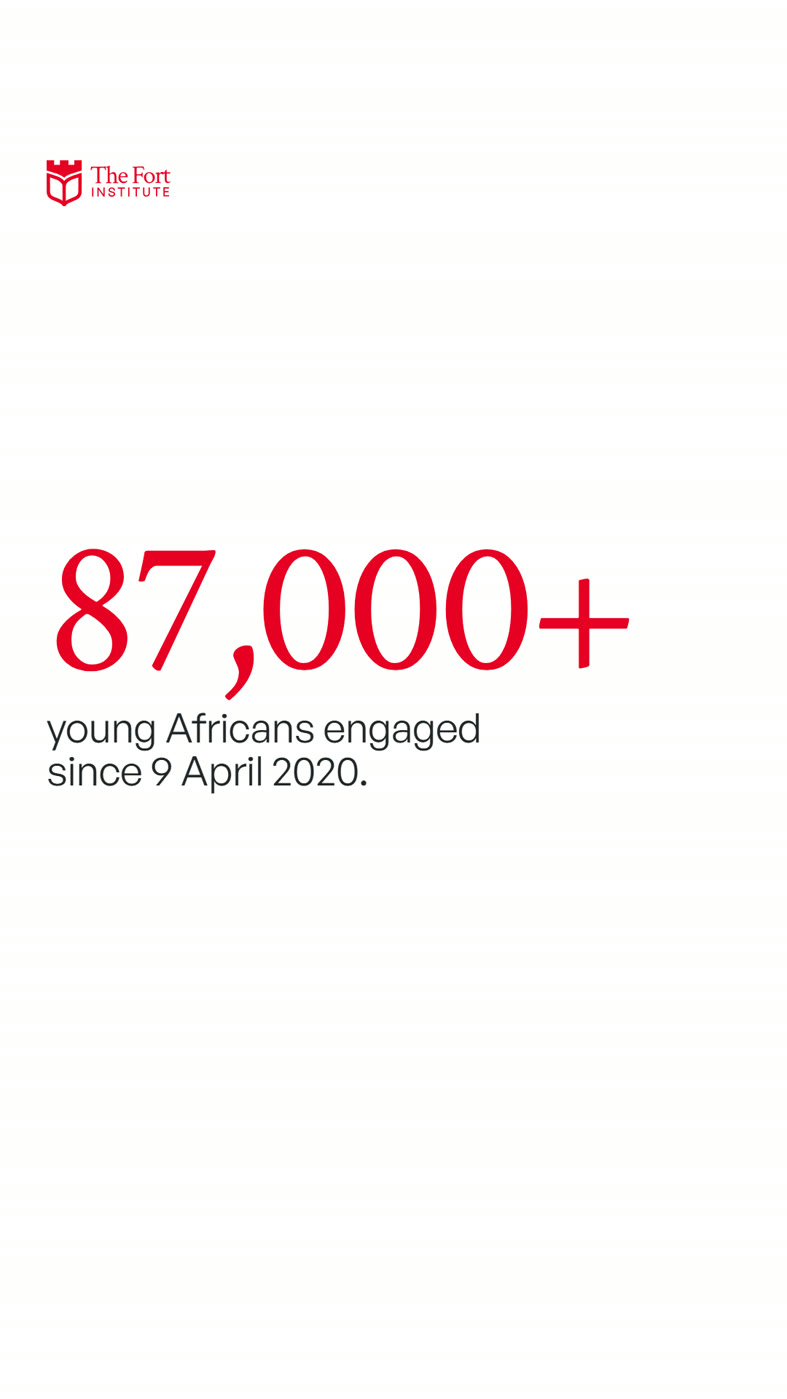
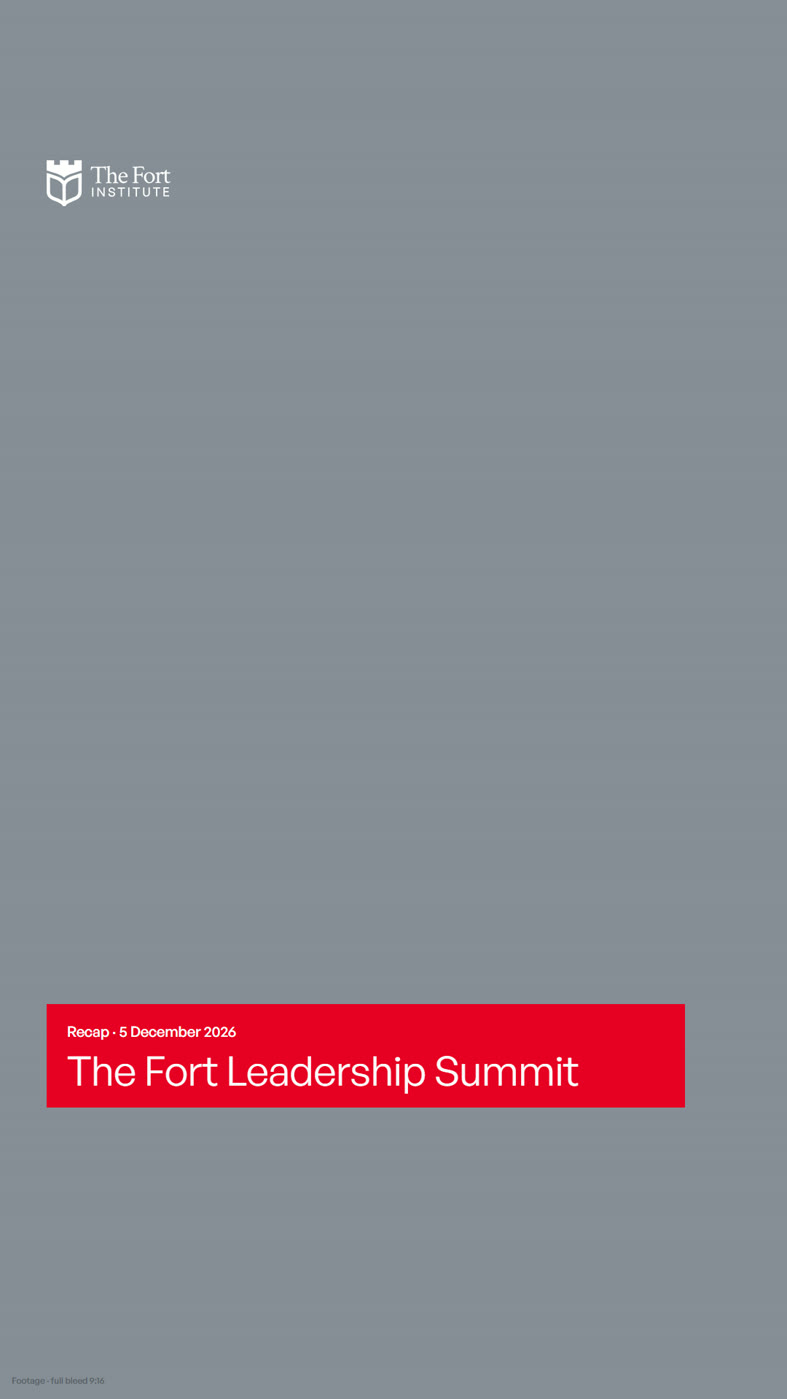
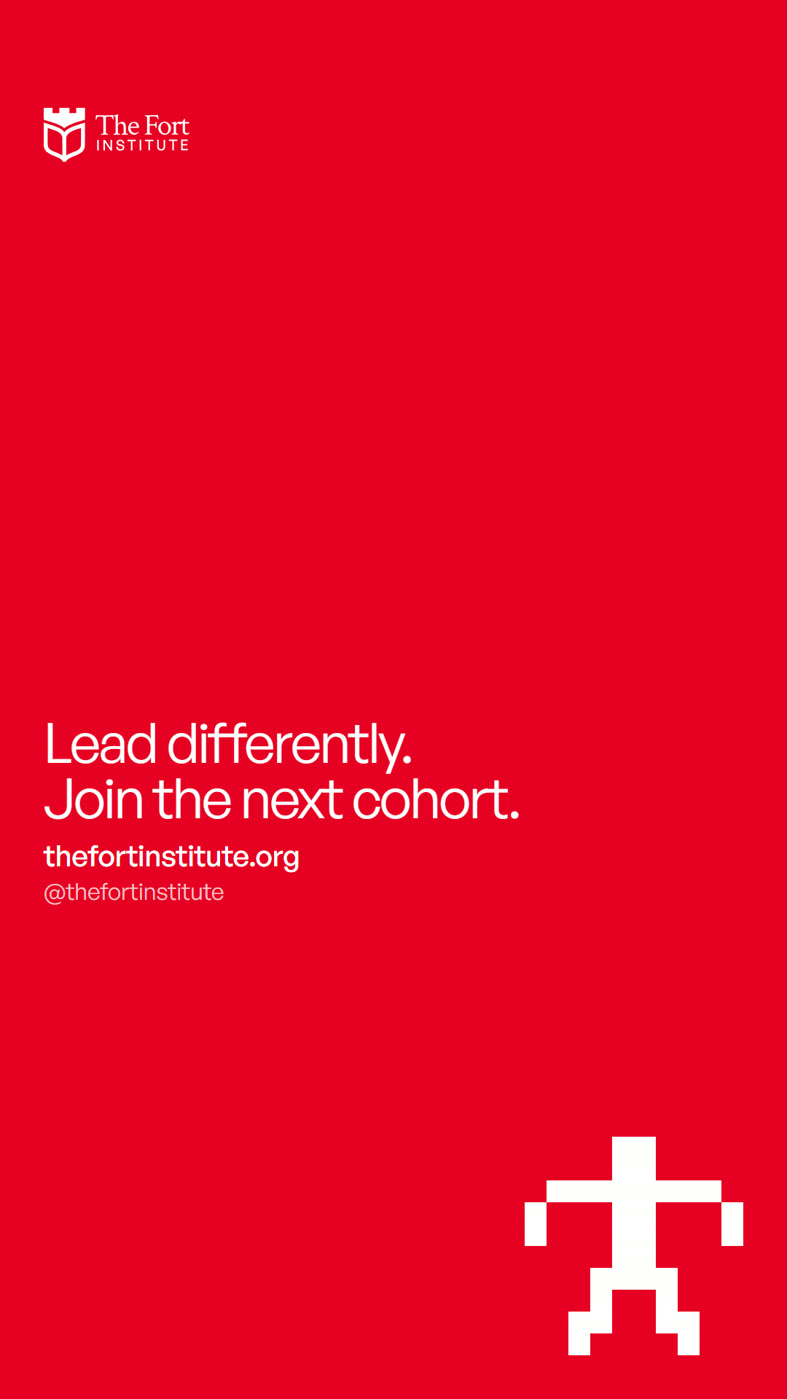
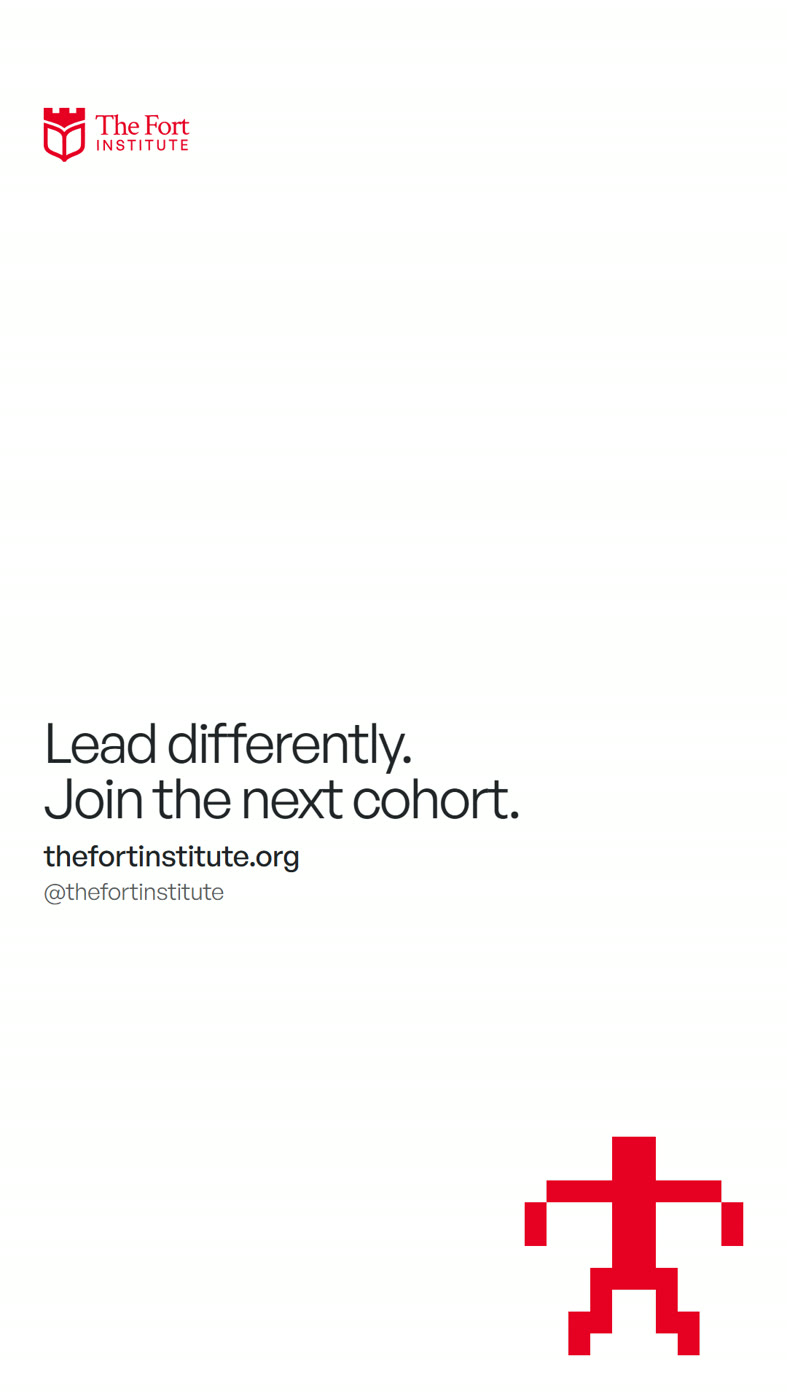
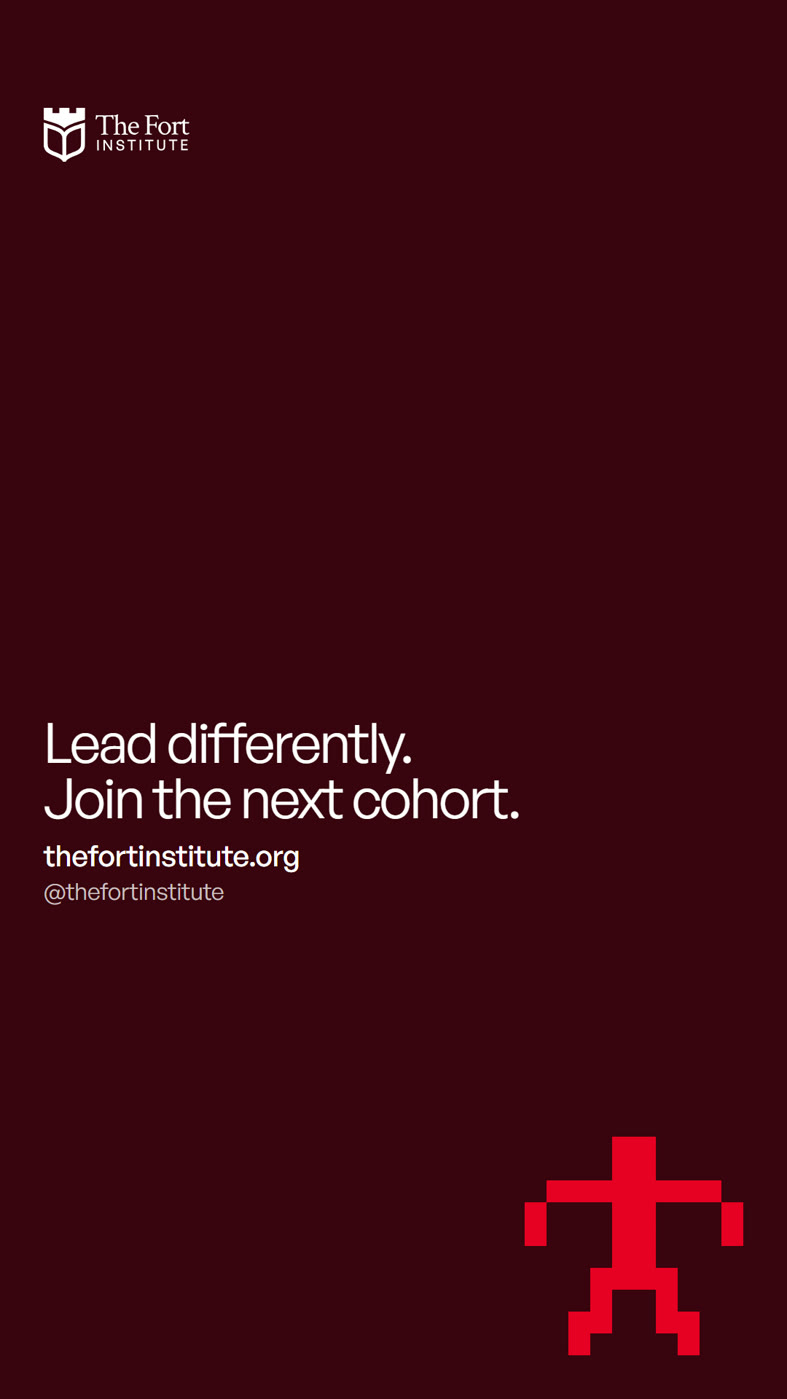
Eight templates, twelve frames (V5 and V8 come in colourways). Grey shows where your footage sits; everything else stays as it is.
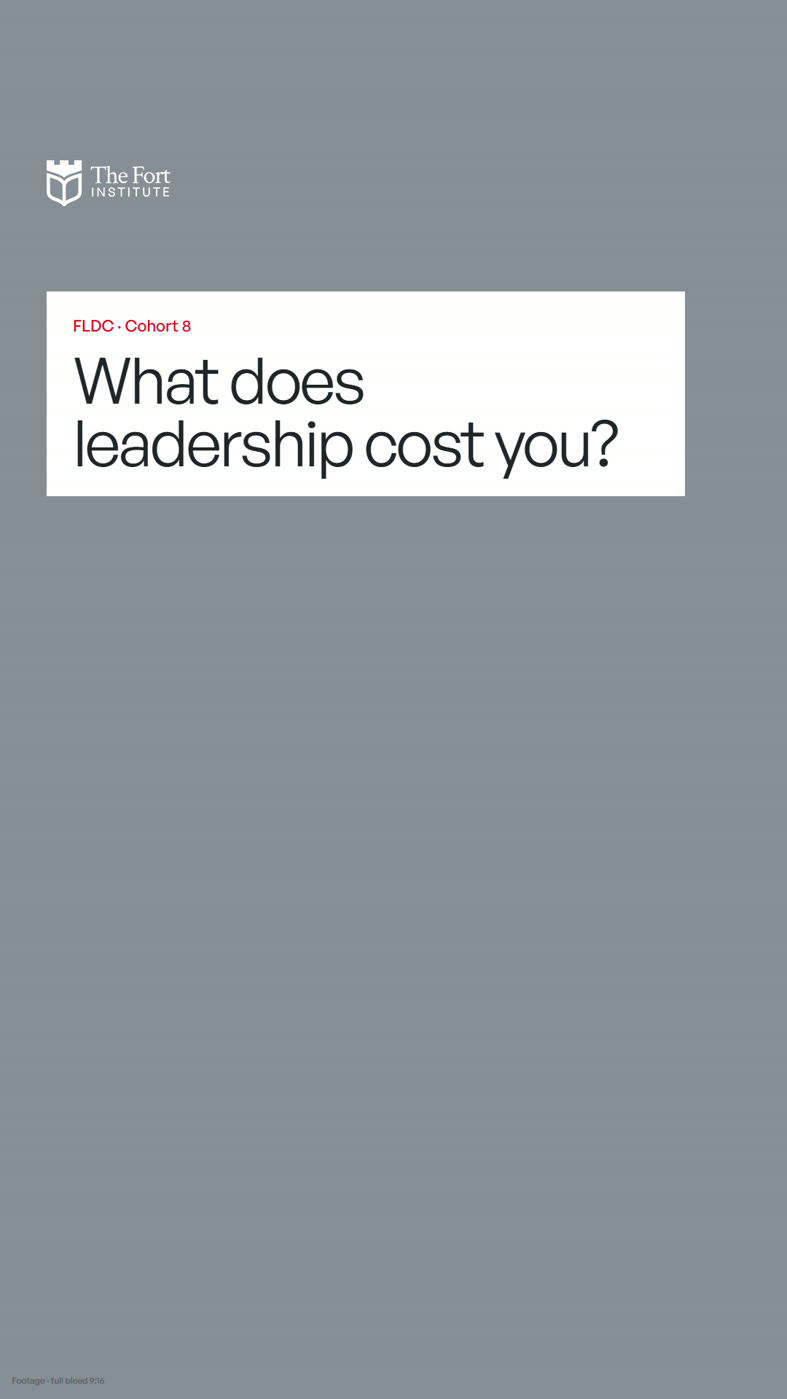
Three have ready-made PNG overlays in the kit (13.6): V1 hook panel, V2 name plate and V8 end card, plus the logo overlay that runs on every video. Build V3 to V7 and the other colourways from these templates in Figma.
Every design here is live. Hover or tap one to switch its grid, swap its colours or edit its text. Press G to show the grid on all of them.
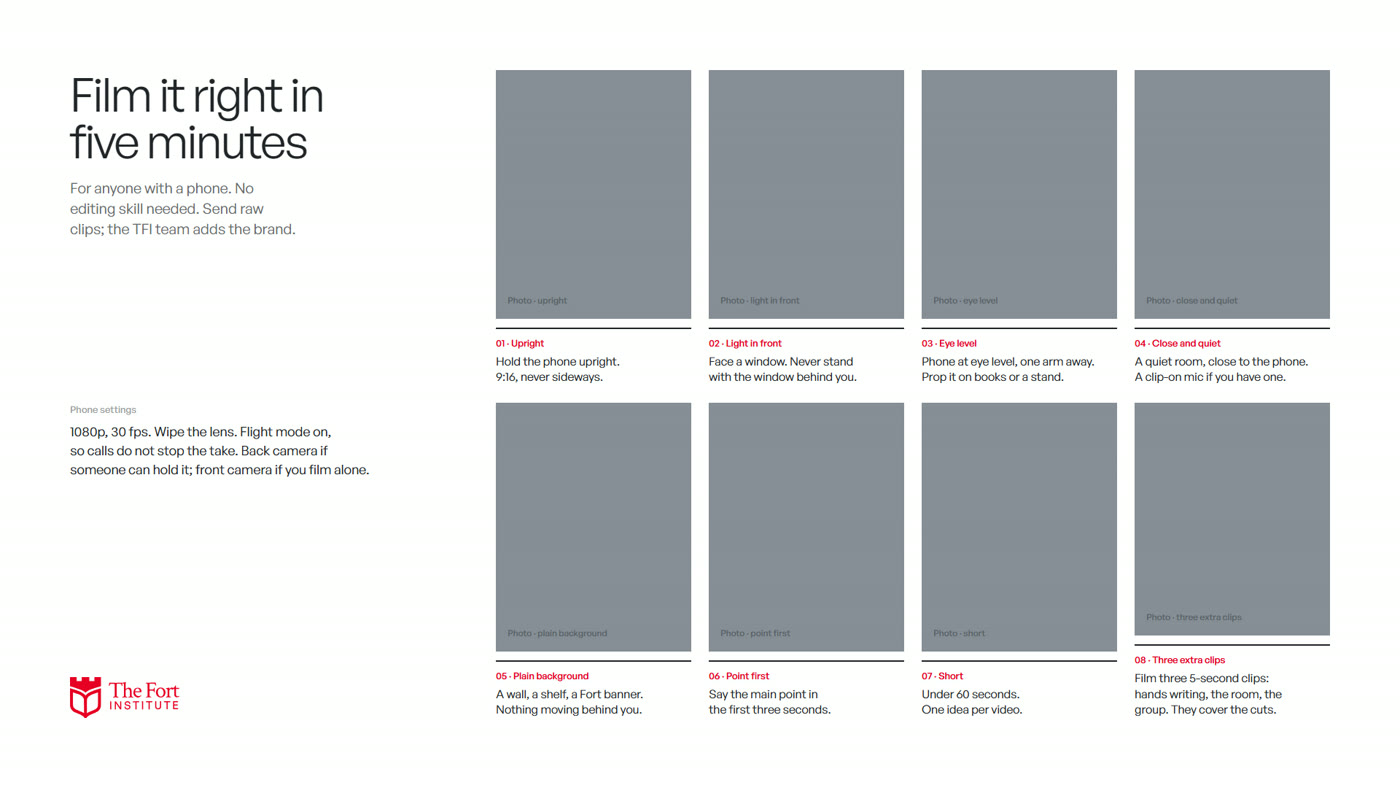
Film it right
For anyone with a phone. Five minutes, no skills needed. Settings: 1080p, 30 fps, lens wiped, flight mode on.
01
Upright
Hold the phone upright. 9:16, never sideways.
02
Light in front
Face a window. Never stand with the window behind you.
03
Eye level
Phone at eye level, one arm away. Prop it on books or a stand.
04
Close and quiet
A quiet room, close to the phone. A clip-on mic if you have one.
05
Plain background
A wall, a shelf, a Fort banner. Nothing moving behind you.
06
Point first
Say the main point in the first three seconds.
07
Short
Under 60 seconds. One idea per video.
08
Three extra clips
Film three 5-second clips: hands writing, the room, the group. They cover the cuts.
Edit it in ten minutes
Eight steps in CapCut, or any editor with auto captions. The overlay kit does the design for you.
New project
CapCut: New project, add clips in order. Ratio 9:16.
Trim
Cut the start, the end and any long pauses. Nothing else.
Hook
First 2 seconds: drop in the hook panel PNG and type the hook on it.
Captions
Captions › Auto captions. Fix names. Style: tier font, white on an Ink plate with rounded corners, sitting on the safe line.
Name
When the speaker first appears, add the name plate PNG and type name and role on it, for 3 seconds.
Logo
Add the logo overlay PNG on top for the whole video.
End card
Finish on the end card PNG for 3 seconds.
Export
1080p, 30 fps. Watch it once with the sound off: can you follow it?
Never
- Filters and colour effects
- Stickers, emoji and GIFs over faces
- Any font outside the three tiers
- Music louder than the voice
- Transitions other than a plain cut
- Text in the app’s no-go zones
The overlay kit
Five transparent PNGs at 1080 × 1920, already placed. Drop them on top of your footage in CapCut (Overlay) or Canva. Do not move or resize them.